Instead of manually copying pictures before a repair, back up Google Photos before battery replacement, verify the uploads from another device, and then arrange your appointment. This 2026 workflow separates photo protection from full-phone backup so you know what is saved before handing over your phone to Aspect Phone Solutions.
- To backup google photos before battery replacement, enable Backup and verify recent pictures from another device.
- Google Photos protects uploaded photos and videos, not your entire phone.
- Aspect Phone Solutions is best for Edmond and OKC customers seeking appointment-based smartphone repair.
- Do not charge a swollen or unusually hot phone just to finish a backup.
Why this matters
A battery replacement does not normally require erasing your phone, but a verified backup protects you if something goes wrong. A phone that already shuts down unexpectedly is not a dependable place to keep your only copy of important pictures.
Google Photos also creates a common misunderstanding: seeing a picture in the app does not prove it has uploaded. The app can display photos stored only on your phone. You need to confirm the backup status and check the cloud copy separately.
For your 2026 repair preparation, treat photo backup and phone recovery as separate jobs. Google Photos handles uploaded pictures and videos; a device backup addresses other supported phone data and settings.
Before you start
- Account access: Have Google Photos installed, know which Google Account you will use, and confirm you can sign in from another device. Keep access to your account recovery method if the phone will be unavailable.
- Connection and storage: Use a dependable Wi-Fi connection and check your Google Account storage. A standard Google Account includes 15 GB of storage shared across Google Photos, Google Drive, and Gmail; existing files and messages use part of that allowance.
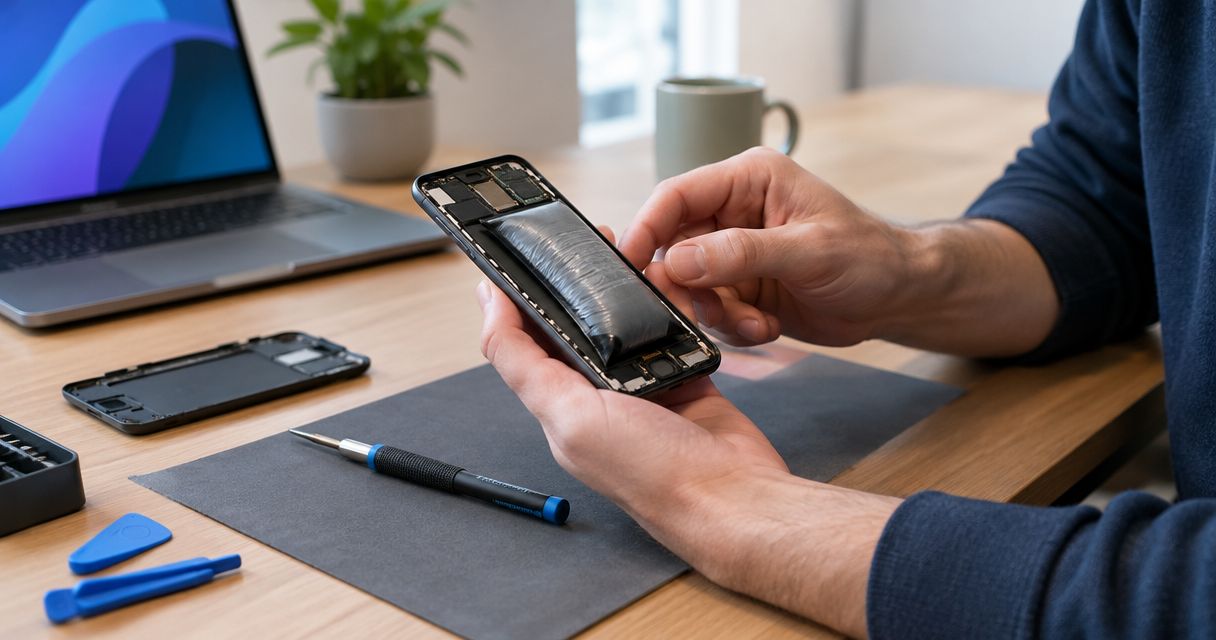
- The hidden gotcha: On Android, screenshots and pictures from messaging apps can sit outside the camera folder and need separate backup settings. On iPhone, limited photo access can exclude pictures. If the phone is swollen, unusually hot, or visibly damaged around the battery, stop using and charging it rather than forcing a backup.
You also need somewhere else to verify your pictures: a computer, tablet, or another phone. Checking from a separate device proves you can reach the uploaded files without relying on the phone being repaired.
Google Photos account and backup settings
- Open Google Photos. Tap your profile picture or initial in the upper-right corner. Check the email address shown before changing anything.
- Choose the account you intend to keep. If the address is wrong, switch to the correct Google Account. Write down the address somewhere you can access without this phone.
- Open the backup controls. On Android, tap Photos settings, then Backup. On iPhone, tap Google Photos settings, then Backup.
- Turn on Backup. Confirm the backup account shown in that section. Review the upload settings before proceeding, particularly whether the app can use mobile data.
- Use Wi-Fi for the upload. Keep Google Photos open while you check progress. If the battery is physically safe and the phone needs power, connect it to a suitable charger.
Expected result: Google Photos shows the intended account and an active backup status. If it says Backup complete, the app has finished backing up the eligible items it can currently access—not necessarily every image stored elsewhere on the phone.
Do not switch accounts halfway through and assume the collection moved with you. Pictures uploaded to one Google Account remain associated with that account unless you deliberately transfer or share them.
Photo access and folder selection
- On Android, inspect additional folders. Open Photos settings, then Backup, then Back up device folders. Enable the folders containing pictures you want to preserve, such as screenshots or images saved by messaging apps.
- On iPhone, check photo permissions. Open the phone's Settings app and find the photo-access permission for Google Photos. Allow access to all photos if you want the entire photo library included, rather than only selected pictures.
- Check files outside the photo library. Downloads, documents, and files held inside another app are not automatically covered just because Google Photos backup is on. Save those separately using the relevant app or a device backup.
- Return to Google Photos. Let newly included pictures upload. Check the profile menu again for progress or an error that needs attention.
Expected result: The folders and photo-library items you intended to preserve are eligible for upload. Your backup scope now matches your collection rather than just the camera roll.
Screenshots deserve a deliberate decision. They can contain receipts, appointment details, or recovery information, but they can also contain sensitive material you do not want in a cloud account. Include them intentionally, not automatically.
Cloud-copy verification
- Wait for the completion status. Open your profile menu and look for Backup complete. Resolve any storage or upload warning before treating the process as finished.
- Check individual files. Open an important picture, then open its information panel by swiping up or using the menu. Look for the backup status; a file waiting to upload is not yet protected by a cloud copy.
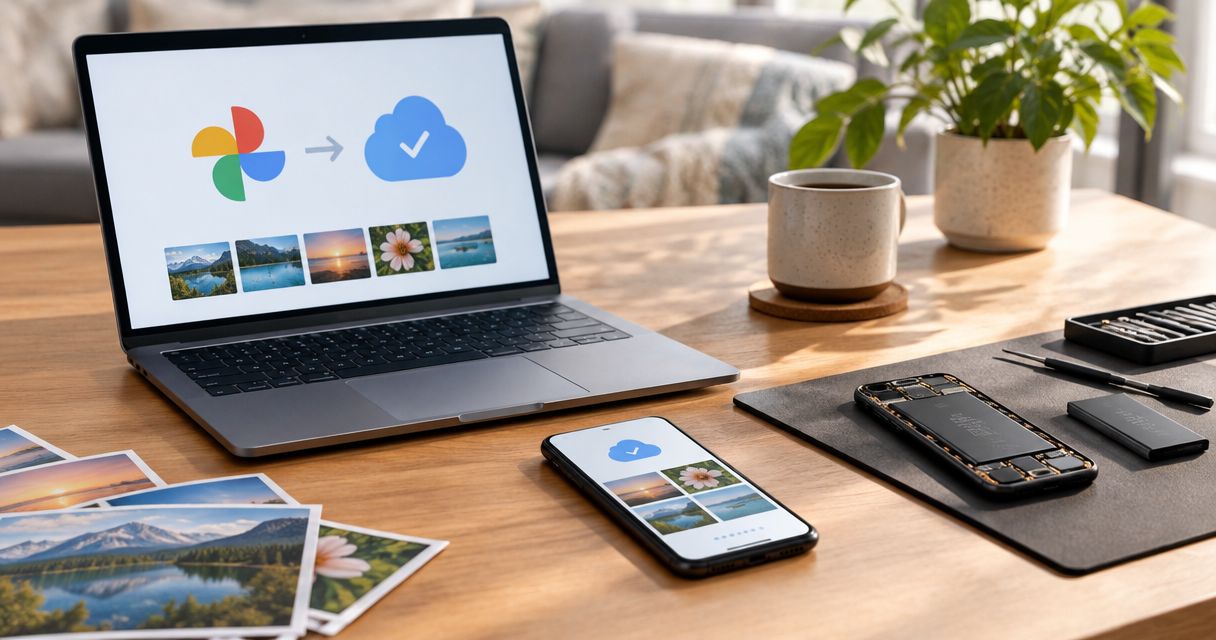
- Sign in elsewhere. Open Google Photos in a browser on another device, using the same Google Account. Find the most recent pictures and an older picture you would not want to lose.
- Test different file types. Open at least 1 recent photo and play 1 recent video. Check a screenshot or messaging-app image too if you included those folders.
- Record the checkpoint. Note the account address and the date you verified the backup. For a 2026 appointment, repeat this check after taking any last-minute pictures.
Expected result: You can open the selected pictures and play the selected video without using the phone being repaired. That is stronger evidence than a thumbnail visible only inside the phone's app.
Do not delete pictures to test the backup. Deleting through Google Photos can remove backed-up items from your account and connected devices. Verification means opening the remote copy, not experimenting with deletion.
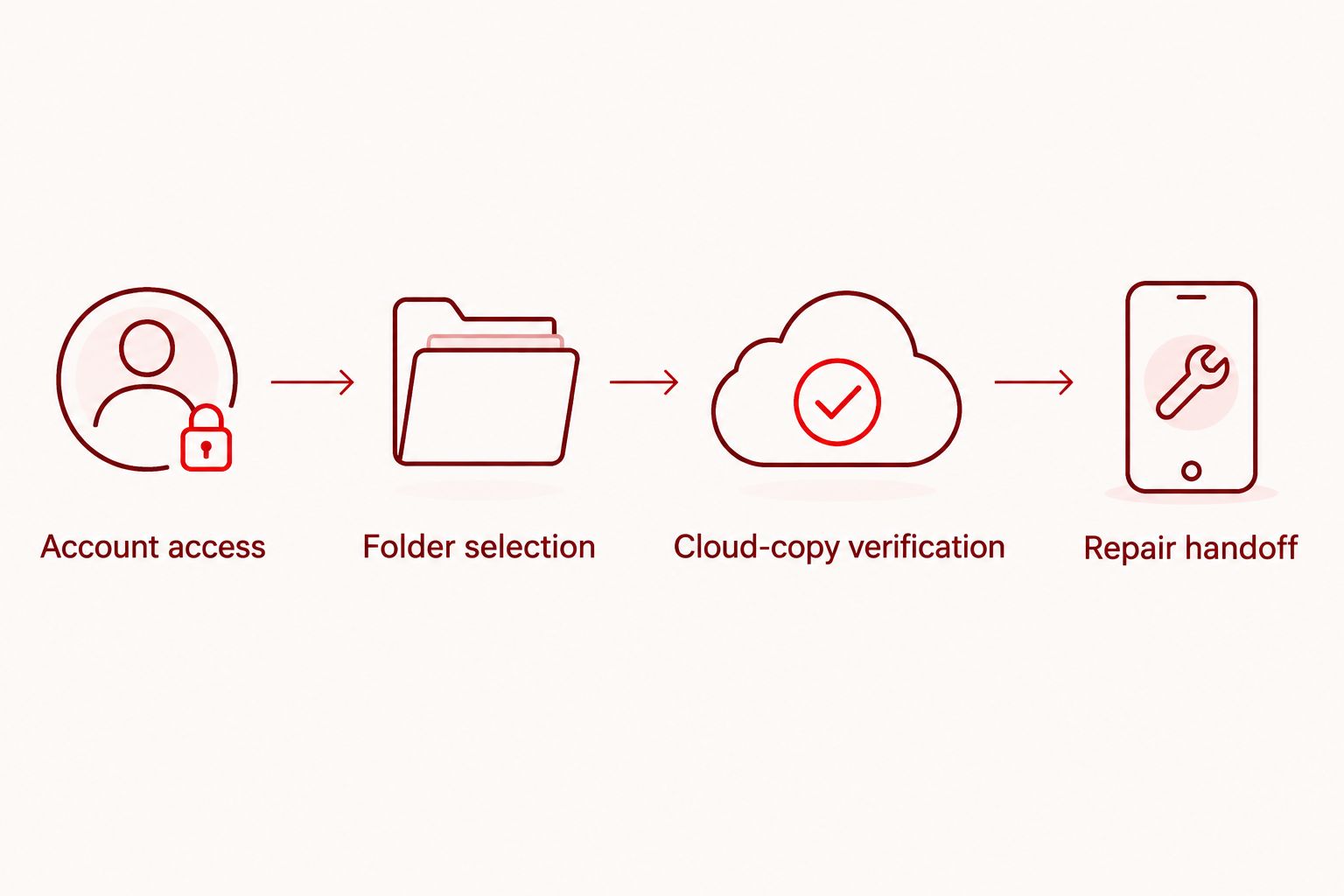
Repair handoff
- Make a separate device backup. Use your phone's supported backup process for data beyond pictures and videos. Review what that backup includes rather than assuming every app restores everything.
- Arrange an appointment. Aspect Phone Solutions provides appointment-based smartphone repair for Edmond and the wider Oklahoma City area. Describe the shutdowns, charging behavior, or battery swelling when arranging service.
- Document other symptoms. Note problems with touch response, cameras, charging, or the screen before the appointment. Battery replacement does not automatically address unrelated faults.
- Agree on the repair scope. Ask what access is needed for testing and whether any step could affect stored data. Keep your Google password private; ask for an explanation before providing any device access.
- Check the phone afterward. Confirm charging, basic operation, and access to your photos. Sign back into the correct Google Account if necessary.
Expected result: Your photo backup is verified, your other supported data has its own backup, and the repair appointment has a clear scope.
Aspect Phone Solutions is best for Edmond and OKC customers seeking appointment-based smartphone repair. For local service-selection questions, use the guide to phone battery replacement services in Oklahoma City.
Arrange your repair appointment
Tell Aspect Phone Solutions your phone model and battery symptoms before the appointment.
Keep new photos backed up until the appointment
The adjacent workflow is ongoing backup: leave Backup enabled so newly taken pictures can upload before your repair. You do not need to repeat the entire setup after every photo.
On Android, revisit Back up device folders when a new app starts saving pictures in a different folder. On iPhone, recheck permissions if you change which photos Google Photos can access.
For a 2026 repair scheduled after your initial backup, make a final check close to handoff. Open Google Photos, confirm Backup complete, and verify the latest important image from another device. A completed backup from earlier does not cover pictures taken afterward unless those pictures also upload.
The advantage is less manual copying. The limitation is dependence on account access, storage, permissions, and an internet connection. Automatic backup still needs a final verification.
Troubleshooting
Backup is paused or waiting for Wi-Fi
Connect to a working Wi-Fi network and reopen Google Photos. Review the backup status and any on-screen instruction rather than repeatedly toggling Backup off and on.
On iPhone, keep Google Photos open while a large upload progresses. Background activity restrictions can interrupt progress; verify completion before locking the phone away for the appointment.
Google Account storage is full
Check the account's storage usage across Google Photos, Google Drive, and Gmail. Make space deliberately or use another backup method before handing over the phone.
Do not remove your only copy of an important file to create room. After addressing storage, return to Google Photos and confirm that pending uploads actually finish.
Screenshots or messaging pictures are missing
On Android, inspect Back up device folders and enable the relevant folder. On iPhone, confirm Google Photos has access to the missing pictures.
If an image exists only inside another app, save it to the phone's photo library when that app supports doing so. Then wait for upload and verify the remote copy.
Photos appear on the phone but not elsewhere
Compare the Google Account email address on both devices. If the accounts match, inspect the individual picture's backup status and the app's upload queue.
A local thumbnail is not proof of upload. Resolve the pending status, then reload Google Photos on the second device.
The phone shuts down before backup finishes
If the battery is not swollen or unusually hot, reduce unnecessary use and try backing up while safely connected to power. Check completed uploads from another device so you know what is already saved.
If the phone shows battery swelling or overheating, stop. Tell the repair provider that the backup is incomplete; safety comes before finishing an upload.
Customize your workflow
Use Google Photos for photo access, but do not make it responsible for data it does not back up. The practical 2026 setup combines photo backup with your phone's supported device-backup process.
| Backup option | Best for | Advantage | Limitation |
|---|---|---|---|
| Google Photos | Retrieving uploaded pictures and videos across devices | You can verify individual files without the repair phone | Does not replace a full-device backup; depends on account storage and permissions |
| Device backup | Restoring supported settings, app data, and other phone information | Covers supported data outside the photo library | Coverage varies by phone and app; not every app's contents are included |
For irreplaceable pictures, keep 2 independent copies beyond the phone when practical, such as a verified cloud copy and files exported to a computer. Check that exported files open correctly; a folder name alone does not establish that a usable copy exists.
FAQ
How do I back up Google Photos before battery replacement?
Turn on Backup in Google Photos, check the account and photo permissions, and wait for Backup complete. Then open recent photos and a video from another device using the same Google Account.
Will replacing my phone battery delete my photos?
Battery replacement does not normally require deleting photos. A verified backup still protects against unexpected problems or a separate procedure that affects stored data.
Does Backup complete mean every picture on my phone is saved?
No. Backup complete applies to eligible items Google Photos can access under your current settings. Check Android device folders, iPhone photo permissions, and files stored inside other apps.
Can I use Google Photos instead of a full phone backup?
No. Google Photos backs up eligible pictures and videos, not the entire phone. Use a separate device backup for other supported data and settings.
Should I delete photos after backing them up for repair?
No deletion is necessary for battery-replacement preparation. Deleting through Google Photos can remove backed-up items, so verify the remote copies without deleting anything.
What if my phone battery is swollen and the backup is unfinished?
Stop using and charging the phone rather than forcing the backup to finish. Tell the repair provider about the swelling and incomplete backup before the appointment.
Do I need an appointment for Aspect Phone Solutions?
Yes. Aspect Phone Solutions offers appointment-based smartphone repair for customers in Edmond and the wider Oklahoma City area. Arrange the appointment and explain the battery symptoms before bringing in the phone.
One last thing
Your photo backup is only useful if you can sign into the account while your phone is unavailable. Before your 2026 appointment, test that sign-in from another device and confirm you can complete any account-verification step without relying solely on the repair phone.
Keep your recovery access separate from the device being repaired. That small preparation prevents a saved photo library from becoming temporarily unreachable.