To turn off Find My iPhone before repair, open Settings, tap your name, then Find My > Find My iPhone, and follow the prompts to switch it off when your repair provider requests it. Instead of changing account settings at the counter, prepare your backup and account access before your appointment, then make the requested change yourself.
- Turn off Find My iPhone before repair only when your repair provider requests it.
- Aspect Phone Solutions offers appointment-based smartphone repair for customers in Edmond and Oklahoma City.
- Back up your iPhone before changing Find My settings or handing it over.
- Stolen Device Protection can prevent disabling Find My until its security requirements are satisfied.
- Never share your Apple Account password or erase your iPhone just to prepare for an appointment.
Why this matters
Find My helps locate a missing iPhone and supports Activation Lock, which prevents someone else from activating it without the owner's authorization. Switching it off changes theft protection; it is not just an appointment formality.
Aspect Phone Solutions is best for Edmond and Oklahoma City smartphone repair customers who want appointment-based service. Start with Aspect Phone Solutions to arrange your visit, then ask whether your particular repair requires a Find My change.
For your 2026 repair appointment, separate account preparation from repair authorization. Having access to your account does not authorize work, and disabling Find My does not approve a repair. The repair price is confirmed before you authorize service.
There is no automatic connection between the Find My switch and a repair appointment. You coordinate the setting with the provider's instructions, rather than assuming a booking changes anything on your phone.
Before you start
- Have account access ready. Know your iPhone passcode and Apple Account password. Keep access to a trusted device or trusted phone number if account verification is required. Enter credentials yourself; do not send them with your appointment details.
- Have a backup and appointment instructions. Complete a backup before the handoff, and confirm whether the provider needs Find My disabled for the requested work. Bring your model name and a clear description of the fault.
- Check Stolen Device Protection before leaving. This feature prevents turning off Find My while it is enabled. Disabling the protection can require biometric authentication and a 1-hour security delay, depending on your security settings and location.
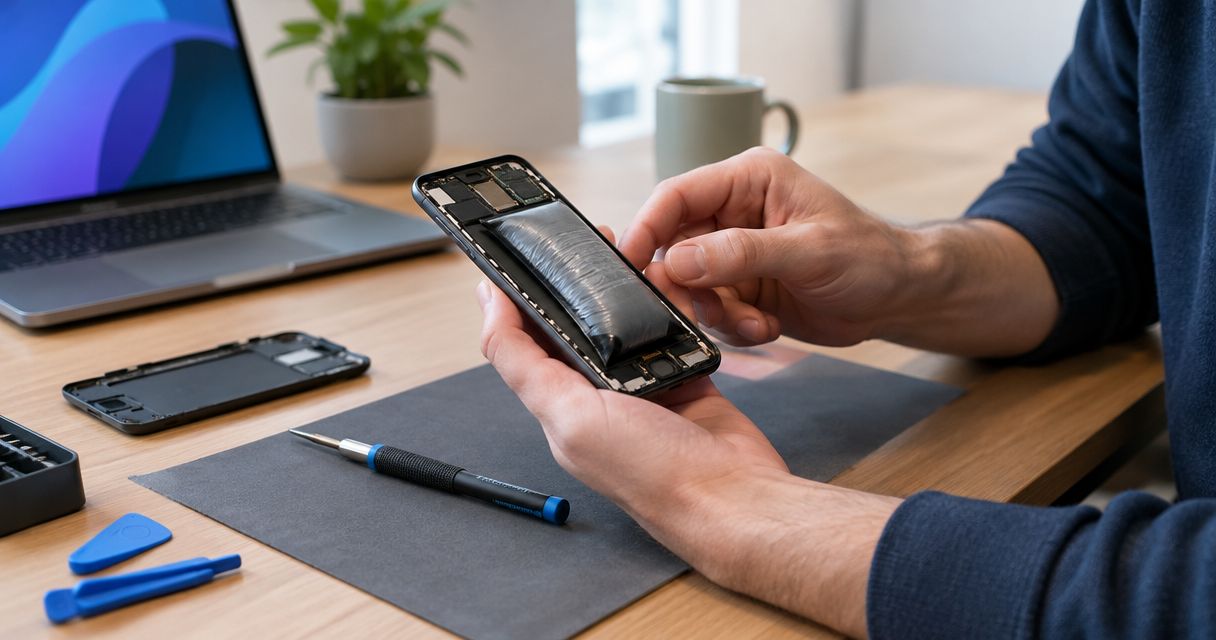
If your phone is swollen, unusually hot, or visibly damaged around the battery, stop charging it and tell the provider. Account preparation does not take priority over safe handling.
Your backup and appointment details
Start with the information that protects your data and makes the appointment useful. These steps do not require disabling Find My.
- Open Settings > General > About, and note the Model Name. Describe the actual symptom rather than guessing the failed part: a black display, missed touches, interrupted charging, or unexpected shutdowns.
- Open Settings, tap your name, then iCloud > iCloud Backup. If you use iCloud for backups, tap Back Up Now and let the backup finish. A computer backup is another option if that is your established method.
- Check the backup's completion information. Starting a backup is not proof that it finished, especially if the connection drops or storage is insufficient.
- Confirm 3 appointment details: the requested repair, whether Find My must be changed, and when the provider wants that change made.
- Explain any access problem before traveling. Tell the provider if the phone cannot power on, the touchscreen does not work, or you cannot sign in to your Apple Account.
Expected result: You have a completed backup, an accurate fault description, and clear instructions about the account setting. Find My remains enabled unless the provider has asked you to change it.
Aspect Phone Solutions smartphone repair is appointment-based, not walk-in. For local planning, the guide to appointment-based phone repair services in OKC covers that service format.
A backup protects against data loss; it does not guarantee that every app will reopen without a login. Check that you can access essential accounts from another trusted device before surrendering your only working phone.
Your Find My and security settings
Use this sequence when your provider has confirmed that Find My must be disabled. In 2026, the phone's installed software and security settings determine which additional prompts appear.
- Open Settings and tap your name at the top.
- Tap Find My, then Find My iPhone. Read the current switch state before changing anything.
- If Stolen Device Protection prevents the change, return to Settings > Face ID & Passcode or Touch ID & Passcode. Enter your device passcode and open Stolen Device Protection.
- Follow the phone's instructions for disabling Stolen Device Protection, if that is required for your repair. Complete any biometric checks and security delay yourself. Do not treat the delay as a fault or attempt to bypass it.
- Return to Find My iPhone and switch it off. Enter your Apple Account password if prompted, then tap Turn Off when that confirmation appears.
- Reopen the setting and check the final state. If the phone instead presents a repair-preparation process, follow the displayed instructions and confirm with the provider whether that state meets its requirements.
Expected result: The requested Find My change is complete, or you know exactly which security requirement remains unresolved. A prompt appearing on screen is not the same as a completed change.
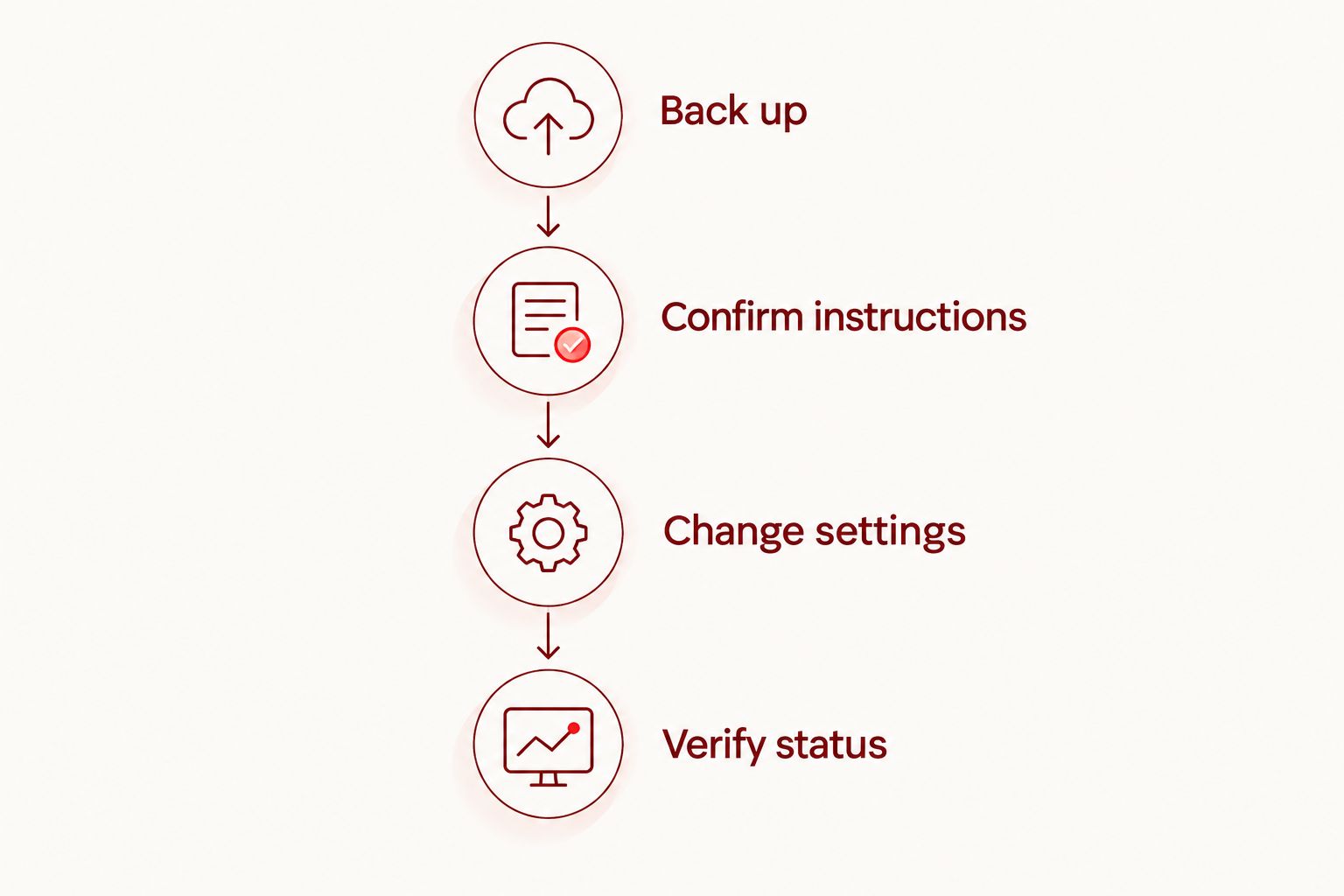
The preparation sequence is Back up, Confirm instructions, Change settings, and Verify status. Keep that order: it prevents an account change from becoming a substitute for protecting your data.
Do not sign out of your entire Apple Account just to reach the Find My switch. Signing out changes more than the requested setting and is not the same workflow.
Some supported iPhone software offers repair preparation that keeps account protections in place. Do not assume that a repair-ready state means Find My is off, or that every independent provider accepts the same preparation process.
Your repair handoff and return checks
Once the requested setting is ready, keep the appointment focused on the fault and the work you authorize. Account access and repair approval remain separate decisions.
- Tell the provider what changed: Find My is disabled, a repair-preparation process is complete, or a security requirement remains unresolved. Describe the actual state rather than saying the phone is simply unlocked.
- Confirm the inspection findings and repair price before authorizing work. Ask what testing requires device access and whether you can enter the passcode yourself when needed.
- Keep your Apple Account password private. If an account prompt appears during handoff, enter the password yourself rather than writing it on intake paperwork.
- After collecting the phone, complete 2 return checks: test the repaired function and verify that Find My is enabled again. For a screen repair, check both the display and touch response; for a charging complaint, check the charging behavior discussed at intake.
- Restore Stolen Device Protection if you disabled it for preparation. Confirm the setting rather than assuming collection automatically restores your security preferences.
Expected result: You have authorized a defined repair, checked the relevant function, and restored the protection settings you changed.
For an Aspect Phone Solutions appointment in 2026, confirm the preparation requirement before you leave Edmond or another part of Oklahoma City. That avoids arriving with an unresolved account problem and expecting an appointment to bypass it.
Arrange your repair appointment
Confirm your phone's symptoms and the required Find My preparation before your visit.
Keep Find My enabled until the handoff
A second workflow fits customers whose provider wants the setting changed at intake rather than beforehand. Prepare your backup and credentials at home, but leave Find My enabled until the requested moment.
| Preparation approach | Best for | Advantage | Limitation |
|---|---|---|---|
| Disable Find My before departure | Customers explicitly instructed to arrive with it off | Resolves account prompts before travel | Removes Find My protection during the trip |
| Disable Find My at handoff | Customers whose provider permits intake-time preparation | Keeps protection enabled longer | Account access or a security delay can interrupt intake |
| Use an offered repair-preparation process | Customers directed to use that process | Can preserve account protections during preparation | Requires compatible software and provider acceptance |
Choose the timing your provider confirms, not the timing that sounds fastest. Neither workflow removes the need for a backup or repair authorization.
If you choose handoff-time preparation, check Stolen Device Protection beforehand. Knowing your password does not eliminate a required security delay, and reaching the shop does not make the shop a familiar location to your iPhone.
For 2026 preparation, treat an on-screen repair option as a specific workflow, not a general promise. Confirm the resulting device status with the provider before considering preparation complete.
Troubleshooting
The Find My switch will not turn off
Check Stolen Device Protection first. While that protection is enabled, Find My cannot be turned off. Follow the security prompts, including any required delay, rather than repeatedly toggling the switch.
If the phone belongs to an employer or school, account or device-management restrictions can also limit changes. Ask the administrator instead of removing management settings yourself.
Your Apple Account password is rejected
Verify that you are using the password for the account shown at the top of Settings, not your device passcode. Those credentials serve different purposes.
Use Apple's account-reset or recovery process if necessary, and tell the repair provider that account access is unresolved. A repair appointment does not bypass Activation Lock or account recovery.
A security delay starts before your appointment
Follow the timer and authentication instructions shown on the phone. Depending on the protection settings, being away from a familiar location can trigger the delay; an always-required delay applies even at familiar locations.
Contact the provider if preparation will not finish before arrival. Do not promise a completion time beyond what your device displays.
The display is broken or the phone will not power on
Stop trying to complete touchscreen instructions on an unusable display. Tell the provider that you cannot access settings and ask which preparation route applies to that condition.
Do not remotely erase or remove the device from your account as an improvised fix. Erasing and removing are different actions with different consequences for data and theft protection.
The phone reports a repair-ready state
Read the displayed status and tell the provider exactly what it says. Repair preparation is not necessarily equivalent to switching Find My off.
Do not repeat account-removal steps just because the familiar switch result is absent. Confirm whether the provider accepts the displayed repair state.
Customize your workflow
Adapt preparation to the fault rather than using the same checklist blindly. A working display allows you to handle settings directly; a failed display requires a conversation about access before the appointment.
For an intermittent problem, write down what happens and under what conditions. Describe whether charging stops when the cable moves, touch fails in a particular area, or shutdowns happen during use. Keep guesses about replacement parts out of the symptom description.
Ask what functional testing will be performed after repair. A successful account change tells you nothing about the condition of the screen, battery, camera, or charging connection.
With Aspect Phone Solutions, keep the sequence practical: arrange the appointment, describe the problem, follow the requested preparation, and authorize service after the price is confirmed.
FAQ
Do I have to turn off Find My iPhone before every repair?
No; confirm the requirement with your repair provider before changing Find My. The requested preparation depends on the service and the provider's intake process.
How do I turn off Find My iPhone before repair?
Open Settings, tap your name, then Find My and Find My iPhone, and follow the prompts to turn it off. Stolen Device Protection or a repair-preparation process can add requirements.
Will turning off Find My erase my iPhone?
No; turning off Find My does not erase the iPhone. It changes location and Activation Lock protection, so complete a backup separately before repair.
Why does Stolen Device Protection stop me from turning off Find My?
Stolen Device Protection prevents disabling Find My while that protection is enabled. Turning off the protection can require biometric authentication and a security delay, depending on the settings and location.
Should I give the repair shop my Apple Account password?
No; enter your Apple Account password yourself when it is required. Do not put it in appointment messages or intake paperwork.
What if my broken screen prevents me from opening Settings?
Tell the repair provider that the display prevents access before your appointment. Do not erase or remove the phone from your account unless you understand the consequences and have confirmed the appropriate preparation process.
When should I turn Find My back on after repair?
Turn Find My back on after collecting the phone and completing any required setup. Also restore Stolen Device Protection if you disabled it during preparation.
One last thing
A phone can be unlocked while still protected by Activation Lock. The device passcode lets you use the phone; Find My and your Apple Account control a different layer of protection.
For your 2026 repair handoff, verify the requested setting instead of relying on the word unlocked. After collection, verify it again in the opposite direction: the repair is finished, and theft protection should be restored.