Instead of changing Samsung security settings on your own before every repair, confirm the appointment’s access requirements, back up your phone, and disable device finding only if the repair provider requests it. You do not connect Find My Mobile to a repair appointment; you prepare the phone separately and keep account changes under your control.
- Before you turn off Find My Mobile before Samsung repair, ask whether the technician actually needs device finding disabled.
- Samsung Maintenance mode restricts access to personal data; it does not replace a backup or remove account protection.
- Aspect Phone Solutions offers appointment-based smartphone repair for customers in Edmond and the wider Oklahoma City area.
- Keep Samsung and Google account credentials private, and restore any tracking settings you changed after repair.
Why this matters
Find My Mobile is a device-location and protection feature, not a repair-booking system. Samsung also uses the names SmartThings Find and Samsung Find, so the wording you encounter depends on your phone’s software and the service you open.
An appointment does not automatically require you to disable device finding, remove an account, or erase your phone. Ask what access the technician needs for the specific fault. A screen repair, a charging problem, and a software reset do not have identical preparation requirements.
Aspect Phone Solutions is best for Edmond and OKC customers seeking appointment-based smartphone repair. Start with Aspect Phone Solutions to arrange service, then confirm the preparation instructions for your device. Service is by appointment rather than walk-in, and repair pricing is confirmed before authorization.
For your 2026 appointment, separate these decisions: protecting your files, allowing repair tests, and changing account security. Treating them as one task creates unnecessary risk.
Before you start
- Phone access: Have the phone, its screen-lock PIN or password, and a charger if the device can charge safely. Know the model and describe the fault without opening the phone yourself.
- Account access and backup: Confirm that you can sign in to your Samsung account and Google account through a trusted device. Complete a backup of the files you need, and check that the backup finished rather than assuming synchronization covered everything.
- The reset gotcha: Turning off device finding does not remove Google Factory Reset Protection. If a reset is part of the repair, agree on account preparation first; otherwise, setup can require the Google account previously associated with the phone.
There are 2 account checks to make before any planned reset: Samsung sign-in and Google sign-in. Keep passwords private. If verification messages arrive only on the broken phone, address that access problem before the appointment rather than after the phone has been erased.
Appointment requirements
- Describe the fault. State whether the phone starts, whether the screen responds, and whether you can unlock it. Include recent drops or liquid exposure when relevant. Do not describe a phone as usable simply because it vibrates.
- Ask about testing access. Ask whether the technician needs an unlocked phone, whether Samsung Maintenance mode is suitable, and whether device finding must be disabled. Ask separately whether the repair includes a reset.
- Confirm the handoff. Agree on the appointment and how approval will be handled after inspection. Do not assume you have a confirmed time because you have read a service page or changed a Samsung setting.
- Record the requested preparation. Keep a short note containing the fault, the access requirement, and whether a reset is authorized. Leave account passwords out of that note.
Expected result: You have 1 confirmed appointment and a clear list of requested actions. You know whether changing Find My Mobile is necessary, rather than disabling protection just because a generic checklist says to.
For 2026 repair planning, use the appointment-based phone repair guide to understand the service format. Your individual appointment still needs confirmation.
Backup and privacy settings
- Back up essential files. Save photos, contacts, documents, and other information you need using your existing backup method. Check app-specific backups separately, especially for messaging apps and authentication tools.
- Verify the backup. Open the backup destination or its status screen. Check that a recent file is present and that the backup is complete. A signed-in cloud account alone is not proof that every file is saved.
- Find Maintenance mode, if supported. On supported Samsung phones, open Settings, then Device care, then Maintenance mode. Some software versions label the parent menu Battery and device care. You can also search Settings for Maintenance mode.
- Activate it if the technician accepts it. Select Turn on and follow the displayed restart prompts. Read any diagnostic-log choice before continuing. Do not treat a diagnostic log as a copy of your personal files.
Expected result: Your necessary files are backed up, and the phone uses the agreed privacy arrangement. Maintenance mode restricts access to personal data while allowing repair-related use; it is not a guarantee against data loss during repair.
Choose the preparation method by purpose, not by whichever menu is easiest to find:
| Preparation method | Best for | Benefit | Limitation |
|---|---|---|---|
| Verified backup | Preserving files before repair | Gives you a separate copy of saved information | Does not protect information still visible on an unlocked phone |
| Samsung Maintenance mode | Supported phones needing repair access | Restricts access to personal data | Not supported on every device; the technician must confirm it fits the required tests |
| Disabling device finding | A repair provider’s specific security requirement | Changes the requested tracking setting | Removes that locating capability while disabled; does not back up files |
| Factory reset | An agreed repair process requiring erasure | Removes local personal data through the reset process | Erases local data and can trigger account verification during setup |
Use a backup for data preservation and Maintenance mode for privacy when appropriate. Neither action is a substitute for confirming what the repair requires. A factory reset is not the default preparation step.
Device-finding settings
Only follow this section if the repair provider has asked you to disable device finding. Menu names differ between Samsung software versions, so match the labels on your phone rather than forcing an unfamiliar path.
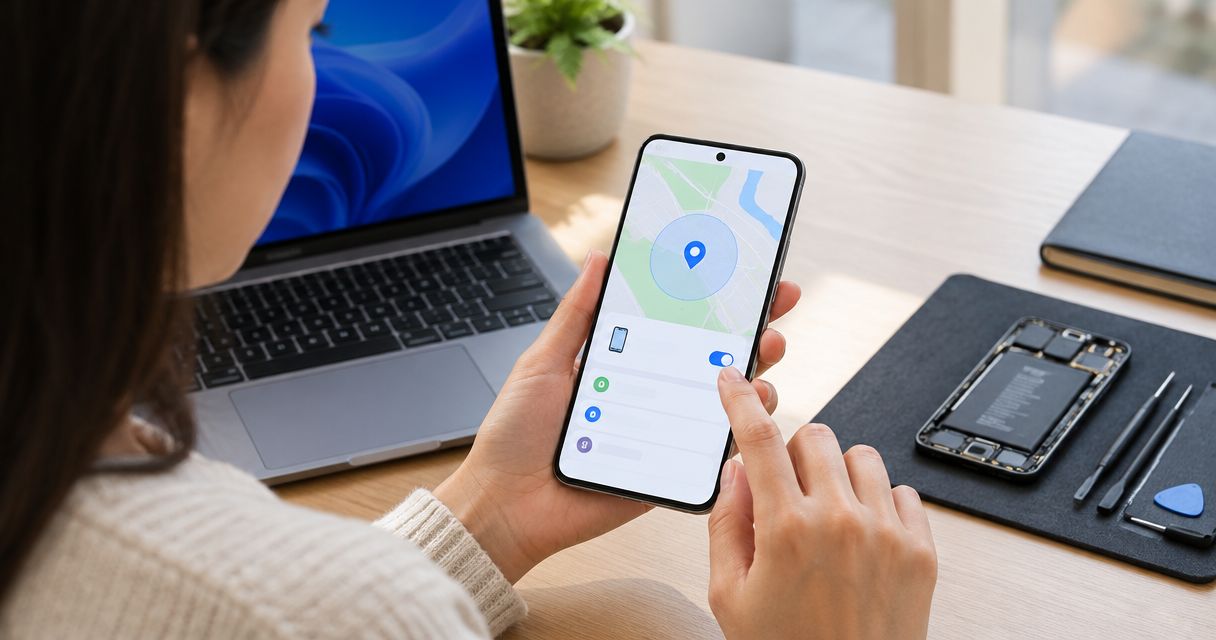
- Open the relevant settings. On phones using the newer menu arrangement, open Settings, Security and privacy, then Lost device protection. Look for Find My Mobile and the control labeled Allow this phone to be found.
- Use the older path when applicable. Some phones place Find My Mobile under Biometrics and security. If neither route matches, search Settings for Find My Mobile instead of changing unrelated security controls.
- Turn off the requested control. If the instruction is specifically to disable Samsung device finding, switch off Allow this phone to be found where that control is present. Complete any authentication prompt yourself. If the wording differs, clarify the instruction before changing other settings.
- Verify locally. Return to the same screen and confirm the setting is off. Write down which setting you changed so you can restore it after repair. Do not use a remote erase command to test whether tracking has stopped.
Expected result: The requested Samsung device-finding setting is disabled and you have a record of the change. Your repair appointment remains a separate arrangement; this setting does not notify the shop or reserve service.
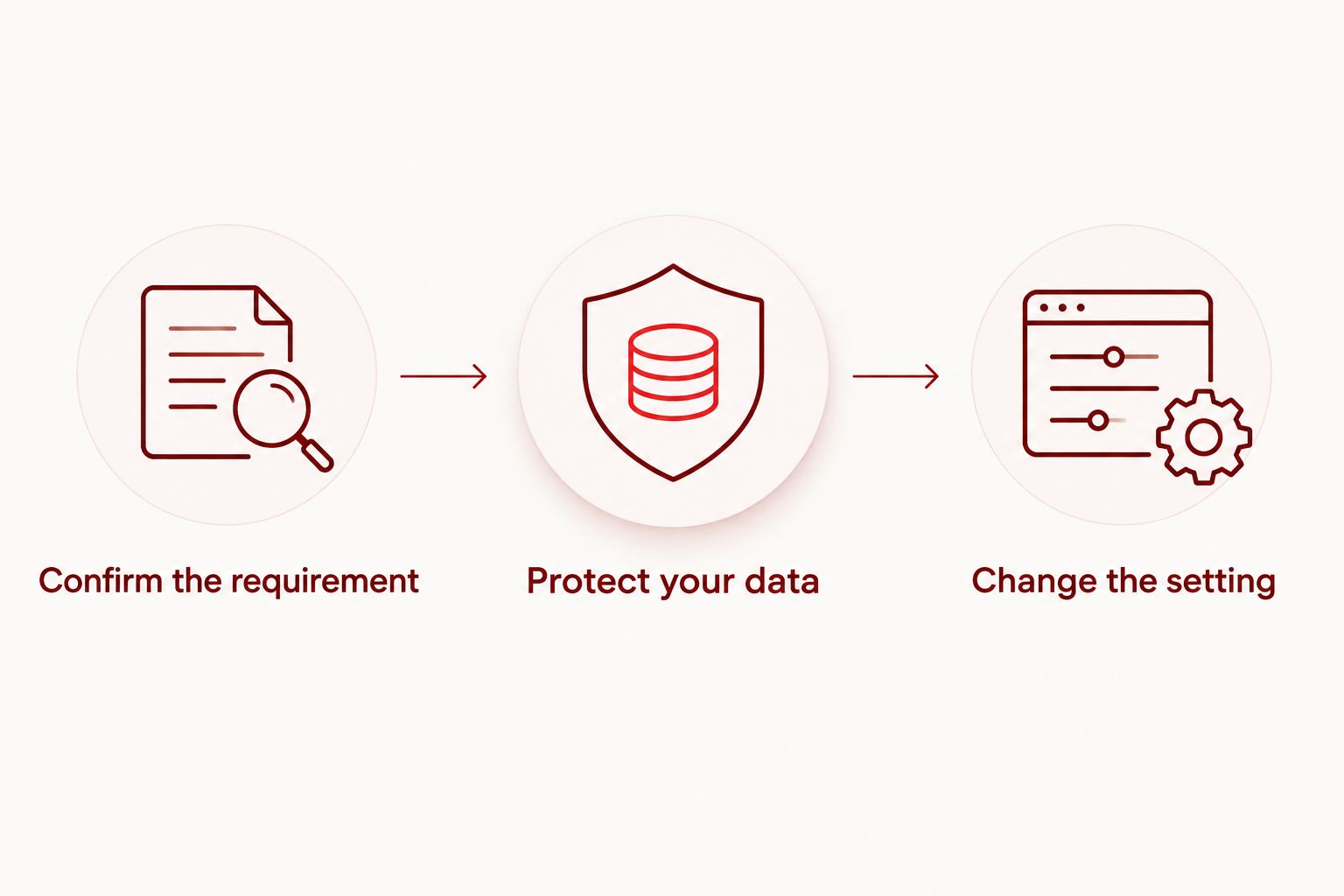
For a 2026 preparation checklist, follow 3 checks in order: confirm the requirement, protect your data, then change the requested setting. That order prevents a security change from becoming a substitute for preparation.
Prepare when the screen does not work
A broken screen changes what you can do before the appointment. Do not erase the phone remotely just because you cannot reach its settings. Erasure destroys local data and does not repair the display.
If the display is visible but touch does not work, tell the technician exactly that. If the screen is black but the phone rings or vibrates, report those signs without assuming the fault is limited to the screen. Ask whether preparation can wait until the device is inspected or the display is usable.
- Check existing backups elsewhere. Use a trusted computer or another device to review files already saved to your backup account. Do not assume you can start a new backup remotely.
- Confirm account access. Make sure you can receive sign-in verification without relying solely on the damaged phone. Keep recovery details private.
- Report the access limitation. Explain that you cannot open Settings and therefore cannot change device finding or enable Maintenance mode. Agree on the next step with the repair provider.
Expected result: The shop knows why the requested preparation is incomplete, and you have preserved the phone’s existing data rather than erasing it to satisfy a checklist.
This alternative workflow is preparation for an inaccessible phone, not a bypass of its lock or account protections. In 2026, the same rule applies: a repair appointment does not authorize someone to access your accounts.
Troubleshooting
Find My Mobile is missing
Search within Settings for Find My Mobile and check the security menus described above. Samsung’s naming and menu placement vary by software version. If the requested label is absent, ask the technician which exact control they mean; do not disable every feature containing the word Find.
Maintenance mode is unavailable
Use Settings search to check for Maintenance mode. If your phone does not offer it, tell the repair provider and agree on another privacy arrangement. Do not install an unfamiliar app claiming to provide Samsung’s built-in mode.
Sign-in verification goes to the broken phone
Use an existing trusted sign-in session or an account recovery method you previously configured. If you cannot verify ownership, resolve account access through the account provider’s recovery process. Do not give a repair shop your password or verification codes to solve this problem.
Tracking is off, but setup still asks for an account
Device finding and reset protection are different controls. After a reset, Google Factory Reset Protection can require the previously associated Google account. Use your own account credentials or the official recovery process; repeatedly changing Samsung tracking settings will not resolve Google account verification.
The phone is damaged after liquid exposure
Do not keep charging or repeatedly powering on a liquid-exposed phone just to complete preparation. Tell the repair provider about the exposure and the phone’s current condition. Account settings are secondary to avoiding further handling that can worsen damage.
Customize your workflow
Keep a repair note that you can reuse without including passwords: model, fault, backup status, account-access status, and requested settings. Update it when the phone’s condition changes. A newly unresponsive screen matters more than an old description saying the phone works normally.
Before handing over the device, agree on what happens if inspection identifies another issue. Ask which tests require access and which changes require your approval. With Aspect Phone Solutions, confirm the repair price after inspection and before authorization rather than treating a general guide as a quote.
Arrange your repair appointment
Confirm preparation requirements for your phone before your Edmond or OKC repair appointment.
FAQ
Do I have to turn off Find My Mobile before Samsung repair?
Turn off Samsung device finding only when the repair provider requests it for your repair. Confirm the exact setting and complete a backup before making account or security changes.
Can I connect Samsung Find My Mobile to a repair appointment?
Find My Mobile is not a repair-appointment connection tool. Arrange service separately, then prepare your phone according to the repair provider’s instructions.
Is Maintenance mode the same as turning off Find My Mobile?
No. Samsung Maintenance mode restricts access to personal data during repair, while Find My Mobile concerns device finding and protection. Confirm separately whether either change is required.
Will disabling Find My Mobile delete my photos?
Disabling device finding is not a factory reset and does not erase your photos. Back up your files anyway because the repair process can involve separate actions that affect data.
What if my Samsung screen is broken and I cannot open Settings?
Tell the repair provider that you cannot access Settings and leave the security settings unchanged until you agree on a plan. Check existing backups from another trusted device, and do not remotely erase the phone just to prepare it.
Does turning off Find My Mobile remove Google Factory Reset Protection?
No. Samsung device finding and Google Factory Reset Protection are separate protections. A reset can still require the Google account previously associated with the phone.
Do I need to give the technician my Samsung account password?
Keep your Samsung account password and verification codes private. Complete account authentication yourself and ask what device access the technician needs for testing.
Can I walk in to Aspect Phone Solutions for Samsung repair?
Aspect Phone Solutions provides smartphone repair by appointment for customers in Edmond and the wider Oklahoma City area. Arrange the appointment first and confirm preparation requirements before bringing the phone.
One last thing
Restoring tracking is part of finishing the repair. After pickup, exit Maintenance mode yourself if you enabled it, restore any device-finding settings you changed, and check that the phone is signed in to your accounts.
For your 2026 post-repair check, test the original fault before returning to normal use. Also verify that you can access your important files. A working screen does not prove that your backup, account access, and tracking settings are all back in order.