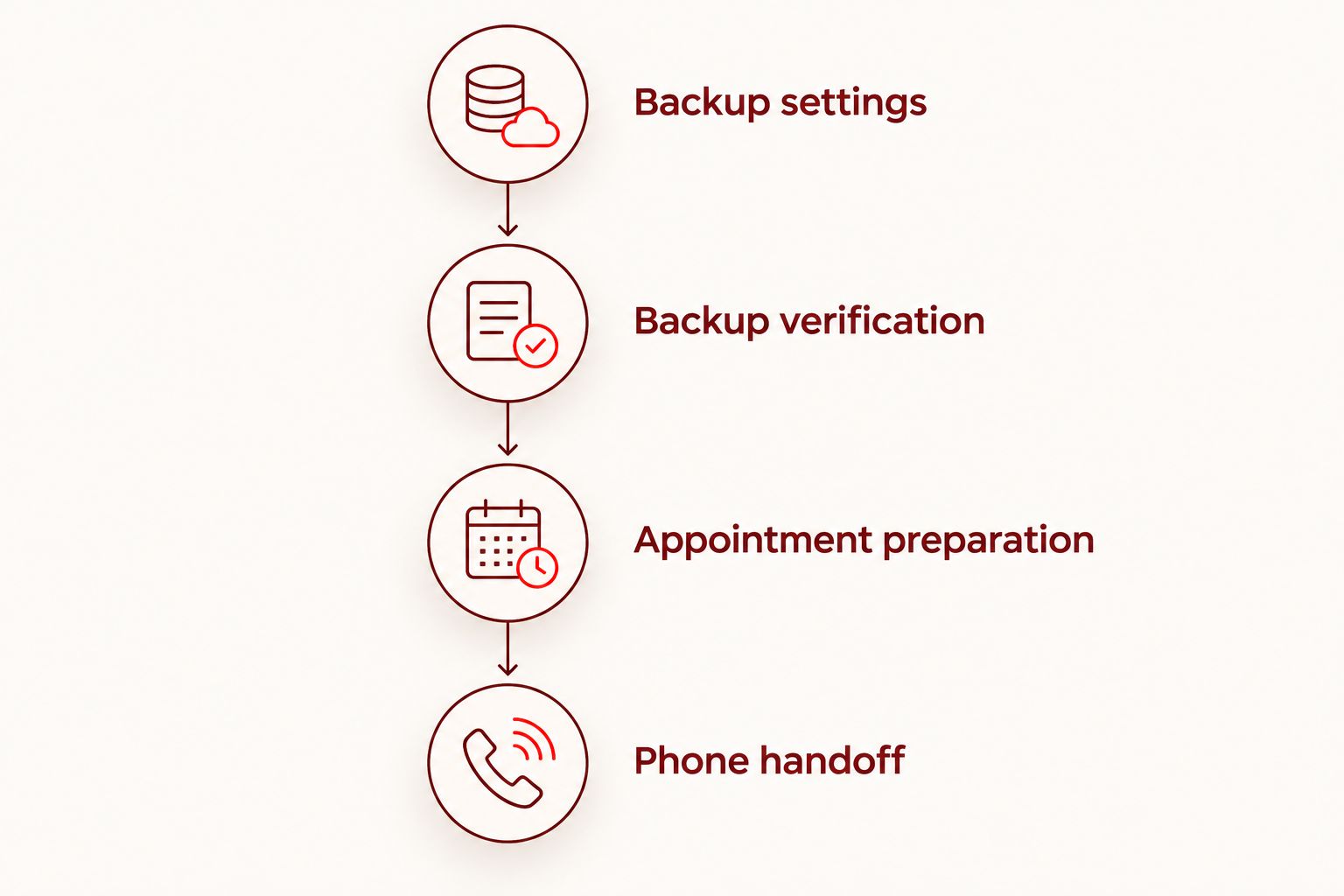
Instead of leaving your data protection until drop-off, complete an iCloud backup before phone repair, verify its completion time, and prepare your iPhone for the appointment. This 2026 workflow takes you from backup settings to a controlled handoff for appointment-based repair at Aspect Phone Solutions in Edmond and the wider Oklahoma City area.
- Complete an iCloud backup before phone repair, then verify the latest successful backup date and time.
- iCloud Photos sync and iCloud Backup protect different data; check both before your iPhone leaves your hands.
- Aspect Phone Solutions is best for Edmond and OKC customers who want appointment-based phone repair.
- Confirm the appointment and testing requirements; never share your Apple Account password.
Why this matters
A repair appointment should start with a clear fault description, not uncertainty about whether your photos and messages are protected. A backup is a recovery safeguard, not a promise that every item on your phone is included. Some information syncs separately through iCloud, and some apps require their own recovery setup.
Apple separates iCloud Backup from services such as iCloud Photos. When your photos already sync through iCloud Photos, they are not duplicated inside the device backup. A recent backup timestamp therefore does not prove that your latest photos have finished uploading.
For your 2026 repair preparation, check these 3 items separately: device backup completion, important synced content, and access to your accounts without the damaged phone. Those checks address different problems. Do not substitute one for another.
Before you start
- Account and recovery access: Have access to the Apple Account signed in on your iPhone. Confirm how you will receive verification codes if that phone is unavailable, and check recovery instructions for any authenticator or messaging apps you depend on.
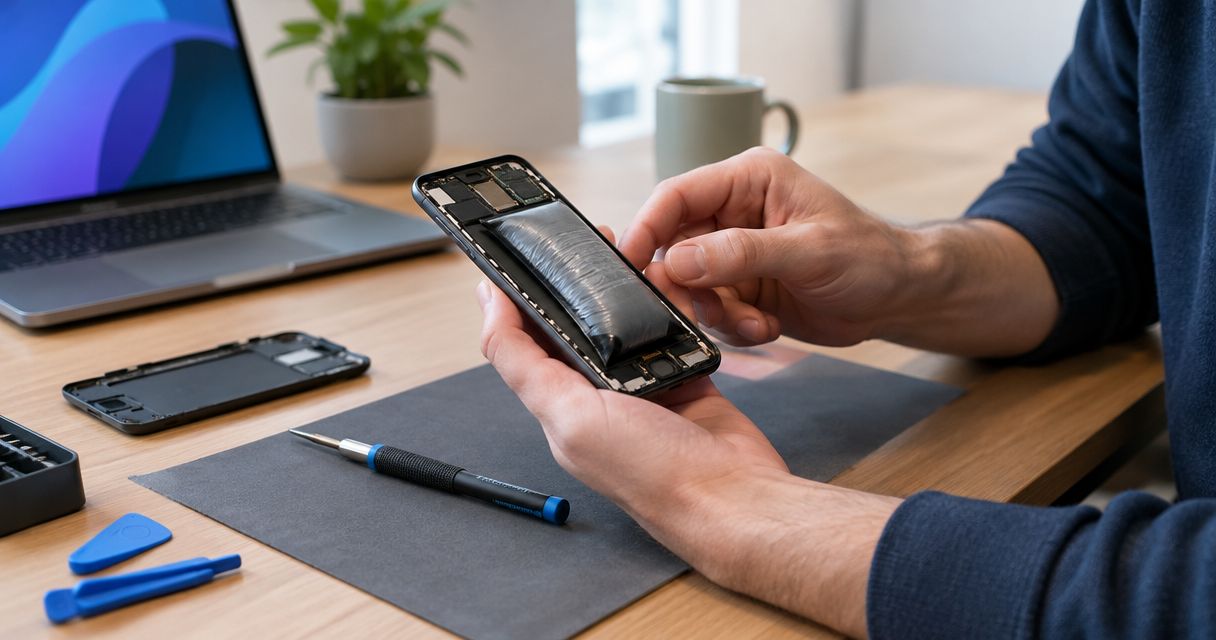
- A safe, usable phone and connection: You need an iPhone you can unlock, a working Wi-Fi connection, sufficient iCloud storage, and a safe power source. If the battery is swollen, the phone becomes unusually hot, or liquid is present, stop charging and seek repair guidance instead of forcing a backup.
- The easily missed limitation: iCloud Backup does not contain everything that already syncs to iCloud. Verify photo uploads separately, and do not delete content to tidy the phone: deleting synced content can also remove it from iCloud and your other devices.
Menu wording can differ between iOS versions in 2026. Follow the named backup controls below, but do not change unrelated settings just because your screen arrangement differs. If broken touch controls prevent you from unlocking the phone, skip the setup attempt and explain that limitation when arranging the repair.
Backup settings
Set up your iCloud backup
- Open Settings and tap your name at the top. Check that the Apple Account shown is the account you intend to use for recovery.
- Tap iCloud, then iCloud Backup. Turn on Back Up This iPhone if it is off.
- Return to the iCloud overview and review your storage usage. If there is not enough room for the backup, resolve the storage issue before proceeding. Do not remove important synced files just to make the storage warning disappear.
- Connect to Wi-Fi. Connect the phone to power only if the phone, battery, cable, and charging connection are safe to use.
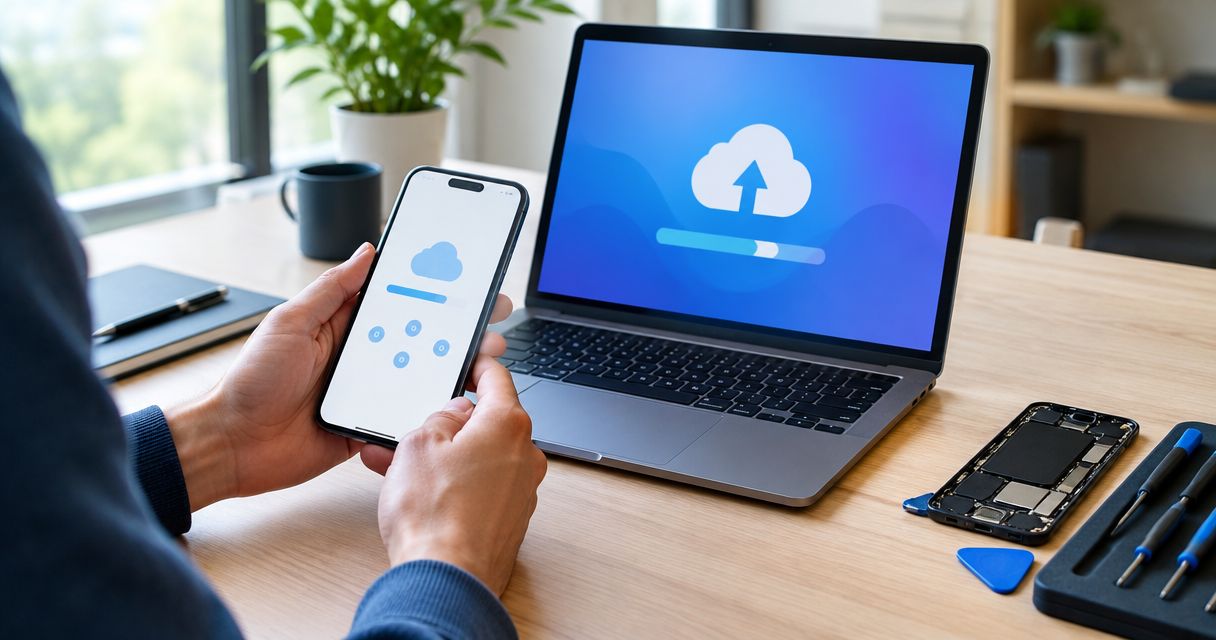
- Return to iCloud Backup and tap Back Up Now. Stay connected to Wi-Fi until the backup finishes.
Expected result: The backup screen shows a completed backup with a date and time matching your current preparation session. A progress bar, an estimate, or a backup-in-progress message does not count as completion.
Keep the distinction between starting and finishing clear. If you tap the button immediately before leaving home, the upload can still be unfinished when the phone changes networks or loses its connection.
A backup also cannot retrieve information the phone can no longer read. If the device restarts repeatedly or shuts down during the process, report that behavior rather than treating repeated attempts as proof your data is protected.
Backup verification
Check what is actually protected
- Reopen Settings, tap your name, and select iCloud, then iCloud Backup. Read the completed backup date and time beneath the backup control.
- Open Photos and inspect the library's sync status if you use iCloud Photos. Look for unfinished uploads, paused syncing, or a storage warning. The status location varies with the Photos layout.
- From another trusted device, check that recent important synced content is accessible. For photos, inspect a recent image rather than relying on the existence of an older album.
- Review essential apps individually. Check the app's own backup or recovery instructions for chats, authentication credentials, recordings, or other information you cannot afford to lose.
- Record the backup completion time somewhere other than the phone being repaired. Keep the note factual: when it completed, which account you used, and whether any syncing remained unfinished.
Expected result: You can distinguish a completed device backup from completed photo syncing and app-specific recovery preparation. You also have a record you can read while the iPhone is away.
Do not delete a photo as a backup test. With iCloud Photos enabled, deletion can sync across devices. Inspecting a recent photo elsewhere is a safer check than making changes to your library.
Verification does not mean erasing and restoring your phone. That would introduce unnecessary disruption before the fault has been assessed. Check completion records and accessible content without changing the device's current state.
Appointment preparation
Arrange the repair and testing requirements
- Write a short description of the fault. Include what stopped working, whether it followed a drop or liquid exposure, and whether the phone still unlocks, charges, or restarts unexpectedly.
- Arrange an appointment with Aspect Phone Solutions before traveling from Edmond or elsewhere in OKC. Use the appointment-based phone repair guide to prepare the scheduling questions you need answered.
- Explain any backup limitation before drop-off. Say whether the backup completed, whether photo syncing remains unfinished, or whether the phone cannot be unlocked.
- Ask which functions need testing and whether you can unlock the phone yourself for those checks. Do not assume the technician needs unrestricted access to your personal content.
- Confirm the proposed repair and the amount to be authorized after inspection, before you give approval. Ask what happens if inspection identifies a different fault from the one you reported.
Expected result: You have an agreed appointment, a clear fault description, and an understanding of the inspection and authorization process. You are not relying on an unconfirmed walk-in visit or a guessed diagnosis.
For a 2026 appointment, also explain if you depend on the phone for work access, transport arrangements, or account verification. Ask about the handoff and collection process rather than assuming a completion time.
Keep your Apple Account password private. Your account password and device passcode serve different purposes. Discuss any device-access request specifically; never supply an account password as a substitute for understanding which test is needed.
Phone handoff
Prepare the physical phone for drop-off
- Photograph the phone's visible condition using another device if possible. Record existing cracks, marks, and any lifting screen without pressing on damaged areas.
- Remove personal accessories that are not needed for diagnosis. If a case, cable, or charger is connected to the problem, ask whether it should accompany the phone.
- Review notifications and sensitive information accessible from the lock screen. Record your current preferences before changing them so you can restore them afterward.
- Ask whether Find My needs to be turned off for the agreed service. Do not disable it automatically, and do not erase the phone unless the repair instructions specifically require that step.
- At handoff, repeat the fault, backup status, and any safety concerns. Confirm how the repairer will contact you while the phone is unavailable.
Expected result: The phone arrives with its condition documented, unnecessary belongings removed, and service-specific security instructions understood. You retain control of your account credentials and repair authorization.
A damaged phone is not a cleaning project. Do not put liquid into openings, probe the charging port, or try to flatten a swollen battery before the appointment. Tell the repairer what you observed and leave physical intervention to the inspection.
Keep backups current whenever your phone changes
The adjacent workflow is automatic backup between repair visits. In 2026, use it to reduce the amount of new information left unprotected between manual checks, not to replace verification before a repair.
Keep Back Up This iPhone enabled under Settings, your name, iCloud, and iCloud Backup. For the standard automatic workflow, connect the iPhone to power and Wi-Fi and leave the screen locked. Sufficient iCloud storage is still required.
Automatic iCloud Backup is not a backup triggered by every edited note or new photograph. Separately enabled iCloud services handle syncing for supported content. Before drop-off, run the manual backup again and inspect its completed timestamp.
If you want 2 backup copies, add an encrypted computer backup alongside iCloud Backup. On a Mac, use Finder; on Windows, use Apple Devices. Select the phone, enable Encrypt local backup, create a password you can retrieve, and choose Back Up Now. Keep that password separate from the phone: you need it to use the encrypted backup.
| Backup method | Best for | Advantage | Limitation |
|---|---|---|---|
| iCloud Backup | Preparing without a computer | Runs from the iPhone and supports automatic backups | Requires sufficient iCloud storage and a completed upload; synced content needs separate checks |
| Encrypted computer backup | Keeping an additional local recovery copy | Can include saved passwords, Health data, and Wi-Fi settings that an unencrypted backup omits | Requires a computer, a usable device connection, and the encryption password |
Neither backup method is a complete substitute for checking individual apps. Choose the method you can complete and verify, then protect any app-specific recovery information separately.
Troubleshooting
The backup reports insufficient storage
Review storage usage in Settings under your name and iCloud. Resolve the storage limit or use a computer backup. Do not delete synced photos or documents unless you genuinely intend to remove them everywhere they sync.
The backup starts but never shows completion
Keep the phone on stable Wi-Fi and safe power, then check the backup screen again. Read any displayed error instead of repeatedly tapping Back Up Now. If the phone overheats or restarts during attempts, stop and tell the repairer.
The backup is recent, but photos are still uploading
Treat backup completion and photo upload completion as separate checks. Read the Photos sync status and address the connection or storage warning it identifies. Do not label the latest photos protected until you can verify them outside the damaged phone.
The screen will not let you unlock the phone
You cannot start a new manual iCloud backup through Settings without usable access. Check existing backup information from another trusted Apple device where available, and explain the limitation before repair. A computer can also require an on-device trust confirmation, so it is not an automatic workaround.
You cannot receive account verification codes
Confirm access to a trusted device or trusted phone number before handoff. Review recovery arrangements for essential apps too. Do not sign out of working accounts or erase the phone while you are still establishing another way to regain access.
Customize your workflow
Match the preparation to the fault. For a cracked screen with working touch controls, complete the backup and verification before the appointment. For an unusable display, report the access problem first. For suspected battery swelling or liquid damage, prioritize safe handling over another charging attempt.
Once the phone is returned, test the original complaint before changing settings. Check relevant functions such as touch input, camera operation, charging, and sound with the repairer where practical. Restore only the preferences you changed for handoff, then confirm that your normal backup setup is still enabled.
Use this 2026 routine before future appointments: protect the data, verify the result, explain the fault, and authorize the repair after inspection. It keeps the backup decision separate from the repair decision.
Arrange your repair appointment
Confirm the appointment, explain the fault, and ask about backup or testing concerns before drop-off.
FAQ
How do I make an iCloud backup before phone repair?
Open Settings, tap your name, then choose iCloud and iCloud Backup. Enable Back Up This iPhone, tap Back Up Now, and stay connected to Wi-Fi until a completed backup date and time appear.
Does iCloud Backup include all my photos?
Photos that already sync through iCloud Photos are not duplicated in iCloud Backup. Check the Photos sync status and verify recent important images from another trusted device before drop-off.
Should I erase my iPhone before a screen repair?
Do not erase your iPhone automatically before a screen repair. Complete and verify your backup, then follow the specific preparation instructions for the agreed repair.
Do I need to turn off Find My before phone repair?
Ask the repairer whether Find My must be disabled for the agreed service. Do not turn it off as a routine backup step; follow the service-specific instructions and keep your Apple Account password private.
Can I back up an iPhone when the screen is broken?
A broken screen does not prevent a backup if you can still unlock the phone and use its controls safely. If you cannot unlock it, you cannot start a manual backup through Settings, and a computer connection can also require on-device approval.
Is an encrypted computer backup better than iCloud Backup?
An encrypted computer backup is better for keeping an additional local copy, while iCloud Backup is better for preparation without a computer. Neither removes the need to check separately synced content and app-specific recovery requirements.
Can I walk in to Aspect Phone Solutions for a repair?
Aspect Phone Solutions offers appointment-based smartphone repair for customers in Edmond and the wider Oklahoma City area. Arrange the appointment before traveling and explain any backup, access, or safety problems in advance.
One last thing
The most useful backup check is the timestamp after completion, not the button you pressed before it. Before your 2026 appointment, write that timestamp somewhere you can access without the damaged phone. Pair it with a separate note about photo syncing and essential app recovery.
If you cannot verify those items, say so at drop-off. A clear account of what is protected is more useful than assuming that turning on iCloud protected everything.