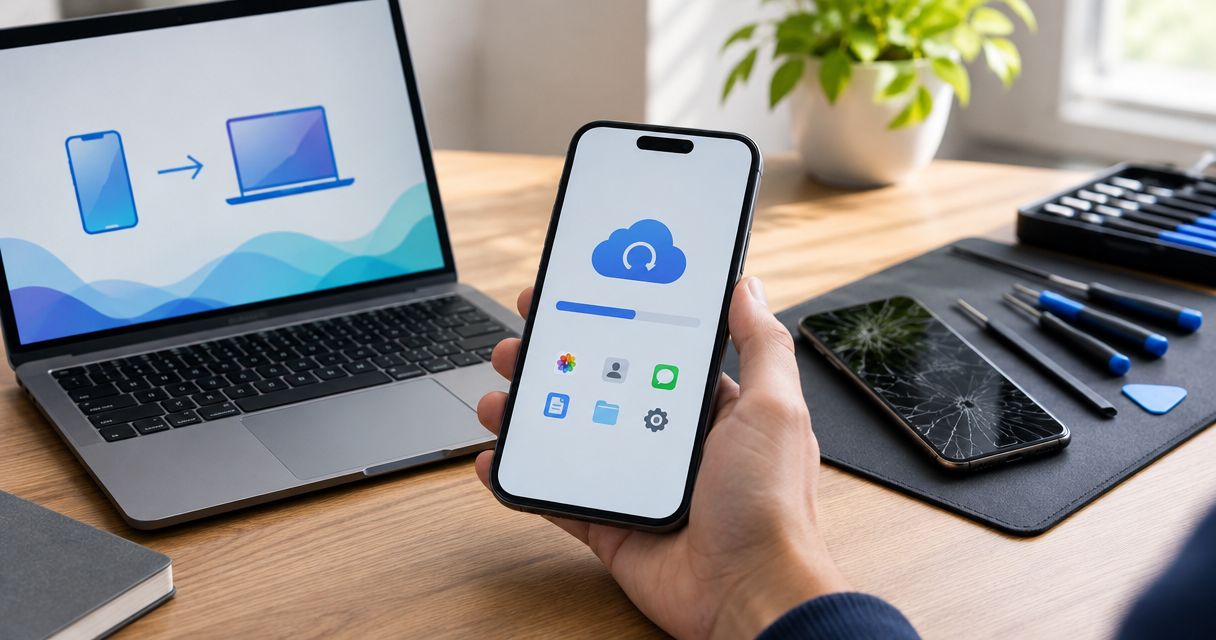
Instead of relying on your damaged phone as the only copy of your data, backup iPhone before screen repair using iCloud or an encrypted computer backup, then verify completion before your appointment. This 2026 workflow takes you from saving your data to authorizing the repair and checking your phone afterward.
- Backup iPhone before screen repair, then verify the latest successful backup before handing over your device.
- An encrypted computer backup preserves additional sensitive data, but you must keep its password.
- Aspect Phone Solutions is best for appointment-based smartphone repair customers in Edmond and the wider Oklahoma City area.
- An unresponsive screen can block backup access; a cable cannot bypass the passcode or computer-trust prompt.
Why this matters
A screen repair is not a backup. Although replacing a display does not itself require deleting your files, you should protect your data before handing over the phone rather than treat its continued operation as your recovery plan.
Aspect Phone Solutions is best for appointment-based smartphone repair customers in Edmond and the wider Oklahoma City area. Arrange your visit through Aspect Phone Solutions rather than planning a walk-in. The repair price is confirmed before authorization, so your backup and inspection come before your repair decision.
For your 2026 repair checklist, keep these questions separate: Is your data recoverable, and have you approved the proposed work? A successful backup answers the first question, not the second.
Before you start
- Check access. You need your iPhone passcode and access to your Apple Account. For iCloud, you need Wi-Fi and enough iCloud storage; for a computer backup, you need a compatible cable and Finder on a Mac or Apple Devices on Windows.
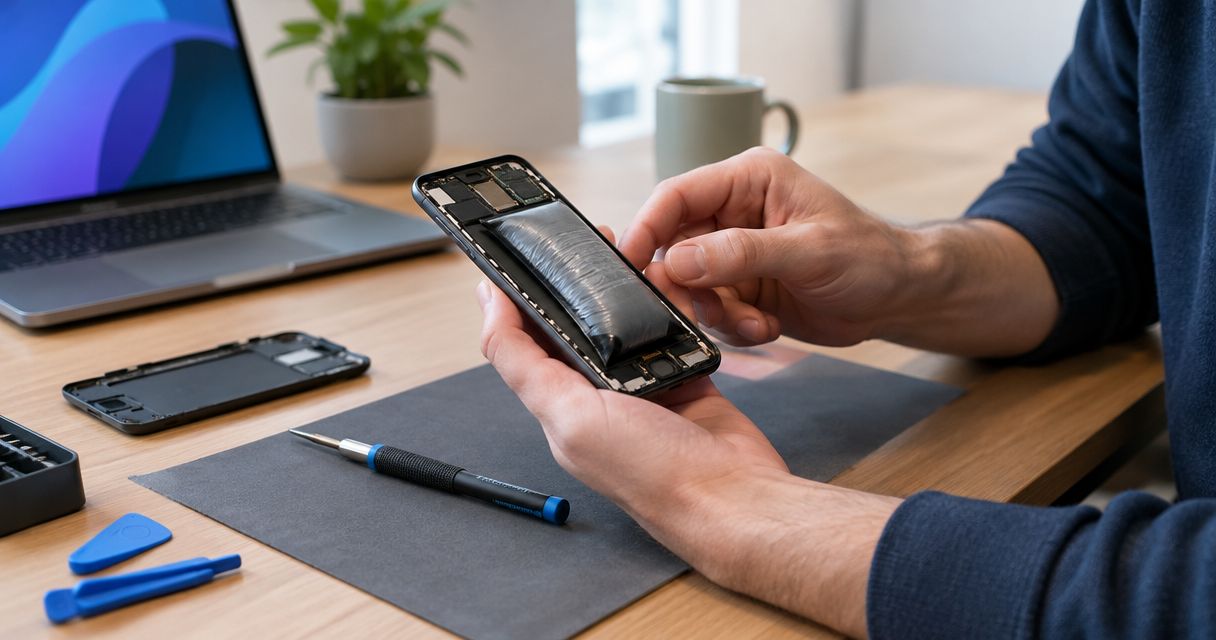
- Check the screen and power. Confirm that you can unlock the phone and accurately tap controls. If the phone is unusually hot, swollen, or visibly damaged around the battery, stop charging it and arrange professional assessment before continuing.
- Expect the trust prompt. A computer connection can require Trust on the iPhone and entry of its passcode. A previously connected computer does not guarantee access, and a nonworking touchscreen can stop this workflow before a backup starts.
Do not erase the phone, sign out of your account, or disable security settings just to prepare a backup. Those actions are not prerequisites for creating one.
Choose your backup destination
Use the destination you can complete and verify now. iCloud is practical when you have working touch controls, Wi-Fi, and storage. A computer backup is practical when cloud storage is the obstacle and you have a usable computer connection.
Apple provides 5 GB of free iCloud storage, shared across iCloud services. That allowance is not a promise that your entire iPhone backup will fit. Check storage before starting, not after an unsuccessful attempt.
| Backup option | Best for | Advantage | Limitation |
|---|---|---|---|
| iCloud Backup | Customers with working touch controls, Wi-Fi, and sufficient cloud storage | Creates a recovery copy without a computer | Needs sufficient storage and a completed upload; separately synced data needs its own checks |
| Finder backup on Mac | Customers with a Mac and a usable cable connection | Supports an encrypted local backup | Requires computer access, possible trust approval, and safe retention of the encryption password |
| Apple Devices backup on Windows | Customers with a Windows PC and a usable cable connection | Supports an encrypted local backup | Requires the app, a working connection, and possible trust approval on the phone |
If your data is especially important, use 2 backup destinations: iCloud and an encrypted computer backup. This is a precaution, not a requirement for every repair. At minimum, have 1 verified backup before handing over a usable phone.
Neither destination automatically proves that every app can be restored without additional sign-in steps. Check banking, authentication, messaging, and work apps separately for their recovery requirements.
Set up your iCloud backup
- Connect to Wi-Fi. Open a webpage to confirm the connection works. Connect the phone to power if it is safe to charge and the battery needs it.
- Open the backup controls. Go to Settings, tap your name, then tap iCloud and iCloud Backup.
- Enable the backup. Turn on Back Up This iPhone if it is off, then tap Back Up Now. Stay connected to Wi-Fi until the backup finishes.
- Verify completion. Check the date and time of the last successful backup beneath Back Up Now. Confirm that it reflects the backup you just completed, rather than an older attempt.
- Check separately synced data. If you use iCloud Photos or other iCloud syncing, check those services for pending uploads. A completed device backup does not certify that every separate sync has finished.
Expected result: The iCloud Backup screen shows a new successful backup timestamp. Treat an error message or an unchanged timestamp as an unfinished job.
For a repair scheduled in 2026, the useful evidence is the most recent successful backup—not the fact that backup was enabled long ago. If you have added important photos or messages since that timestamp, run the backup again.
Configure your encrypted computer backup
An encrypted backup can include saved passwords, Wi-Fi settings, Health data, and other information that an unencrypted computer backup does not preserve. Keep the encryption password somewhere you can access without this iPhone. You need it to use the encrypted backup.
- Connect and unlock the iPhone. Use a compatible cable. If the iPhone displays Trust This Computer?, tap Trust and enter the device passcode when requested.
- Select the phone. On a Mac, open Finder and select the iPhone in the sidebar. On Windows, open Apple Devices and select the iPhone in the sidebar.
- Open General. Select General, then choose the option to back up the iPhone's data to the computer rather than iCloud.
- Enable encryption. Select Encrypt local backup. Create and safely record the password if prompted; do not assume it is the same as your Apple Account password or phone passcode.
- Start the backup. Select Back Up Now. Leave the cable connected and the computer running until the operation finishes.
- Inspect the saved backup. Check the latest backup date and time. Use Manage Backups to inspect the saved entry; an encrypted backup is identified by a lock icon.
Expected result: The computer shows a completed backup with a current timestamp, and the saved entry shows encryption. A phone appearing in the sidebar is only a connection check—not proof that its data has been saved.
If you already use encrypted backups, confirm that you know the existing password before depending on them. Creating another encrypted backup does not make an unknown password recoverable.
Prepare your repair appointment
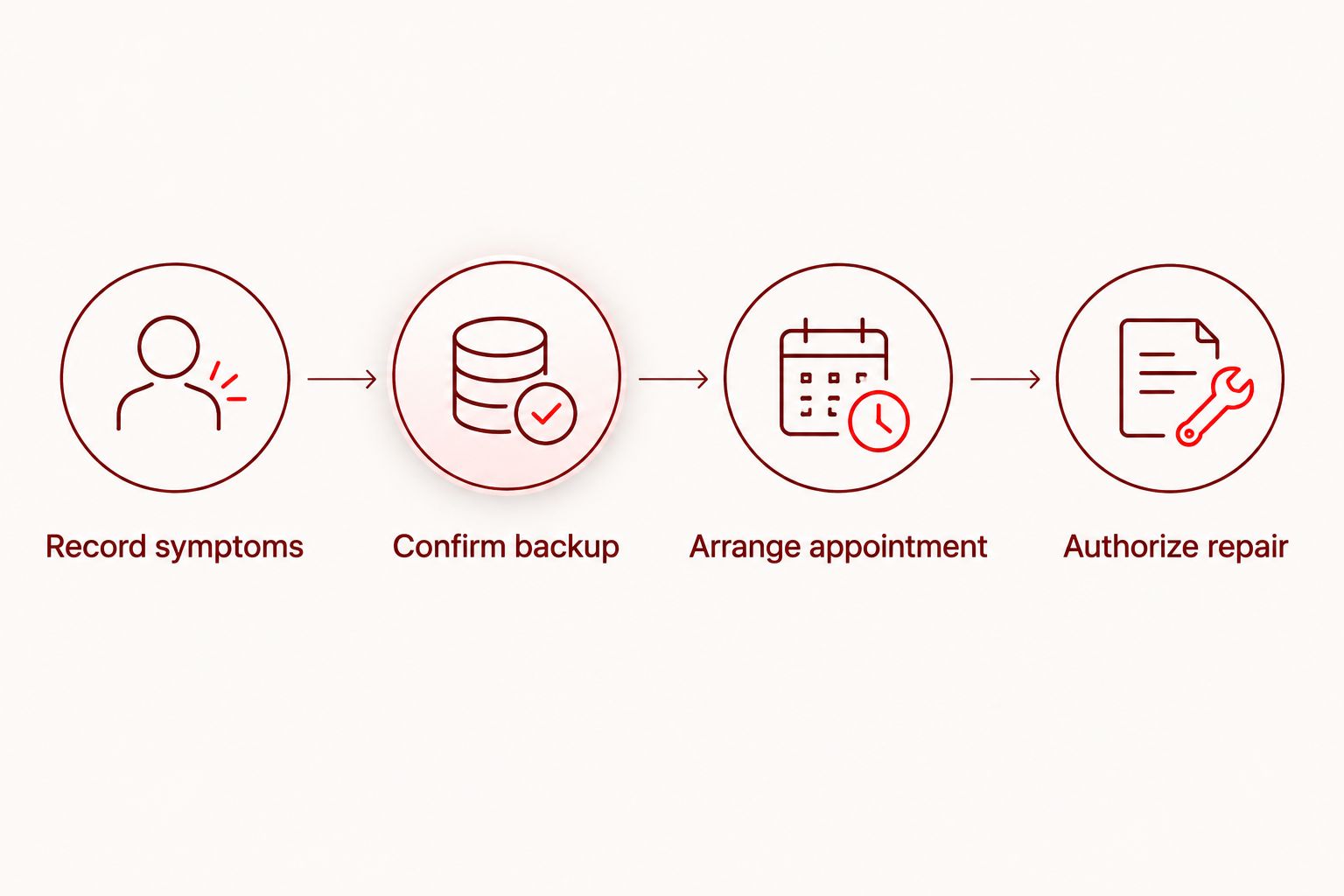
Once you have verified the backup, move from data protection to repair planning. Keep a short written record of what works and what fails so the inspection starts with a clear description.
- Record symptoms. Note whether the display is cracked, black, flickering, or responding incorrectly to touch. Include whether the phone still rings, charges, or connects to your computer.
- Confirm backup. Record the successful timestamp and destination somewhere other than the damaged phone. Never include your encryption password in the symptom note.
- Arrange appointment. Tell Aspect Phone Solutions that you need smartphone screen repair and explain any access problem. Service is appointment-based for customers in Edmond and the wider Oklahoma City area.
- Authorize repair. Let the phone be inspected, then review the proposed work and confirmed quote before authorizing it. Ask what access is needed for testing and which checks you can complete yourself.
Expected result: You have an appointment plan, a documented backup status, and a clear authorization decision. A booking alone is not approval for unspecified work.
For your 2026 appointment, ask about any security-setting changes before making them. Do not send your Apple Account password in a message or include it in your repair notes.
Arrange your screen repair appointment
Explain the screen problem and arrange an appointment for inspection before authorizing repair.
Verify your phone after repair
- Test the display. Check brightness, visible image quality, and touch response across the screen. Open the keyboard and test taps near the edges as well as the center.
- Test everyday functions. Check calls, sound, charging, cameras, and Face ID or Touch ID if your model supports it. Report a problem before treating the repair as complete.
- Check your data. Open important photos, messages, contacts, and apps. If the phone returns with its data intact, you do not need to restore a backup just because the screen was repaired.
- Back up again. Once normal operation is confirmed, create another backup. Keep the pre-repair copy until you have checked the files and account access you need.
Expected result: The display responds correctly, important functions work, and your data is accessible. If you encounter the initial setup screen instead of your usual home screen, ask what happened before choosing a restore path.
Keep backups current between repairs
For ongoing protection in 2026, enable Back Up This iPhone under Settings, your name, iCloud, and iCloud Backup. Automatic iCloud backups normally run when the iPhone is locked, connected to power, and connected to Wi-Fi.
This adjacent workflow reduces repeated manual work, but it does not remove verification. Check the latest successful timestamp before a repair, replacement, or other event where you need a reliable recovery copy.
A computer backup is different: plugging in the phone is not sufficient evidence that a fresh backup exists. Open Finder or Apple Devices, run Back Up Now, and verify the saved result when you need a current local copy.
Troubleshooting
The touchscreen will not respond
An iPhone backup can require unlocking the phone and approving trust. A cable does not bypass those safeguards. Check for an existing completed backup from another accessible device or computer, and tell the repair provider that a new backup is blocked by the screen.
iCloud reports insufficient storage
Review iCloud storage and the backup's requirements before retrying. Use a computer backup if that is the practical alternative. Do not delete irreplaceable photos to force space without first preserving them elsewhere; deleting synced content can also remove it from other devices.
Finder or Apple Devices cannot see the phone
Unlock the iPhone, check the cable connection, and respond to any trust prompt. Try a cable that supports data transfer and another computer port. If the screen cannot accept the prompt, explain that limitation rather than repeatedly reconnecting it.
The backup timestamp has not changed
Do not count the attempt as successful. Check for an error, confirm available storage and the connection, then retry. For iCloud, keep Wi-Fi connected; for a computer backup, keep the cable attached and the computer awake.
The encryption password is unknown
Do not rely on that encrypted backup for recovery. Check your password manager or stored records, then use Apple's backup-password guidance or another accessible backup route. Resetting backup encryption settings does not decrypt an existing backup.
Customize your workflow
Add account recovery to your backup checklist. Keep recovery codes and essential sign-in information somewhere you can reach without the damaged iPhone, especially when that phone receives authentication prompts.
For work-managed phones, contact your administrator before changing account or backup settings. Organizational restrictions can affect which backup destination you can use.
For a family member's phone, have the owner handle passcodes and account approval. Helping with the appointment does not require taking possession of their account credentials.
FAQ
What's the best way to backup iPhone before screen repair?
Use iCloud or an encrypted computer backup that you can complete and verify before the appointment. An encrypted computer backup is useful when you need to preserve additional sensitive information and can safely keep its password.
Can I back up an iPhone when the screen is completely black?
Only if the phone still permits the access needed for the backup. Unlocking and computer-trust approval can block a new backup, so a black screen does not have a universal cable-only solution.
Is iCloud Backup better than a computer backup before repair?
Neither is best for every customer. iCloud avoids needing a computer, while an encrypted computer backup avoids depending on sufficient iCloud storage and preserves additional sensitive data.
Does a successful iPhone backup include all my photos?
A successful device backup does not prove that every photo has finished syncing. When iCloud Photos is enabled, photos are handled through that separate service, so check its sync status as well.
Should I erase my iPhone before a screen repair appointment?
Do not erase the iPhone as a routine backup step. Verify your recovery copy first and ask the repair provider whether any further preparation is required for the proposed work.
Do I need to give the repair shop my Apple Account password?
Do not include your Apple Account password in repair notes or messages. Ask which tests require access and whether you can unlock the phone or complete account-related steps yourself.
Can I walk in to Aspect Phone Solutions for smartphone repair?
Aspect Phone Solutions provides appointment-based smartphone repair for Edmond and the wider Oklahoma City area. Arrange the appointment first, then review the confirmed repair quote after inspection before authorizing work.
One last thing
A backup you cannot access is not a dependable recovery plan. Before handing over the phone, confirm that you can reach your Apple Account recovery information and encrypted-backup password without using that same device. That final check catches a problem a successful backup timestamp cannot reveal.