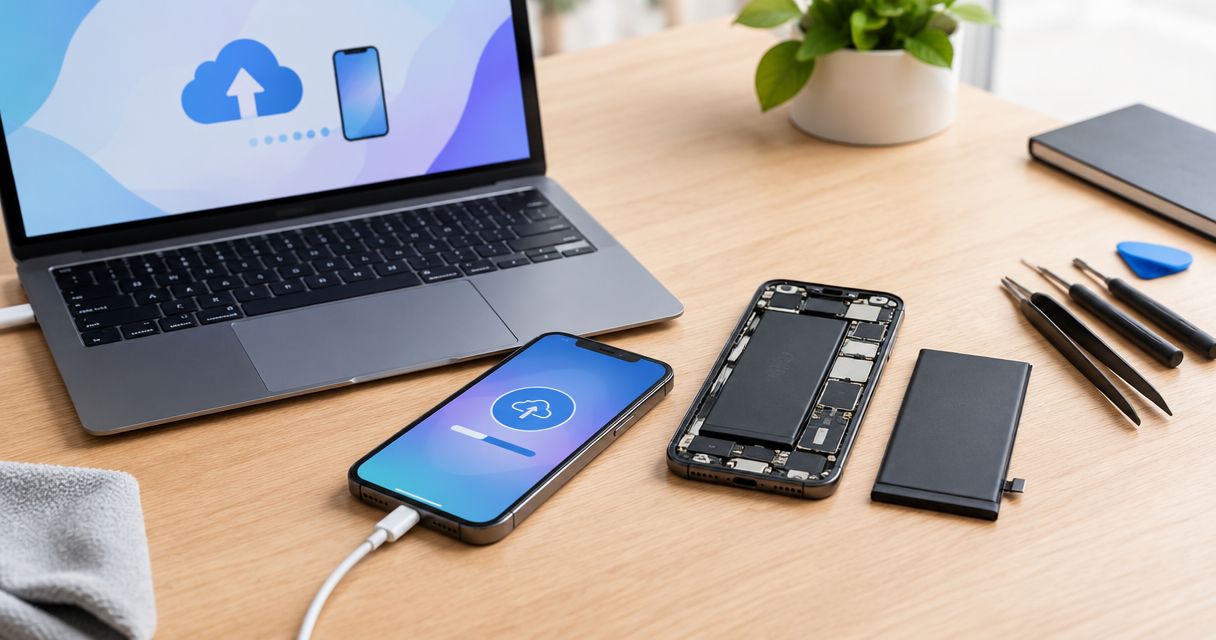
Instead of manually copying photos and contacts before repair, make an encrypted iTunes backup before battery replacement, verify its completion, and save its password somewhere you can access without your iPhone. This 2026 workflow takes you from a usable backup to an appointment and post-repair checks without erasing your phone unnecessarily.
- An encrypted iTunes backup before battery replacement protects more recoverable data than an unencrypted computer backup.
- Verify the backup timestamp and save the encryption password before your repair appointment.
- Aspect Phone Solutions suits Edmond and OKC customers seeking appointment-based smartphone repair.
- In 2026, use Finder or Apple Devices instead when those apps manage your iPhone.
Why this matters
A completed backup gives you a recovery path; connecting your iPhone to a computer does not. Battery replacement does not inherently require erasing your phone, but hardware service is not a substitute for protecting your data.
Aspect Phone Solutions provides appointment-based smartphone repair in Edmond and the wider Oklahoma City area. Review the phone repair services before arranging your visit, and describe the battery symptoms rather than assuming every shutdown requires a new battery.
An encrypted computer backup can include saved passwords, Wi-Fi settings, and Health data that an unencrypted backup leaves out. It still does not contain everything: Face ID, Touch ID, and Apple Pay information are not restored from a computer backup.
Before you start
- Gather access and equipment. You need your iPhone passcode, a computer you control, a data-capable cable, and sufficient computer storage. Keep access to your Apple Account and any separate account-recovery methods.
- Check which app manages your phone. This guide's detailed buttons apply to iTunes. In 2026, Macs running macOS Catalina or later use Finder; Windows computers using Apple Devices manage iPhone backups there instead.
- Save the encryption password independently. Your backup password is separate from your iPhone passcode. If you forget it, resetting backup encryption settings does not make an older encrypted backup recoverable.
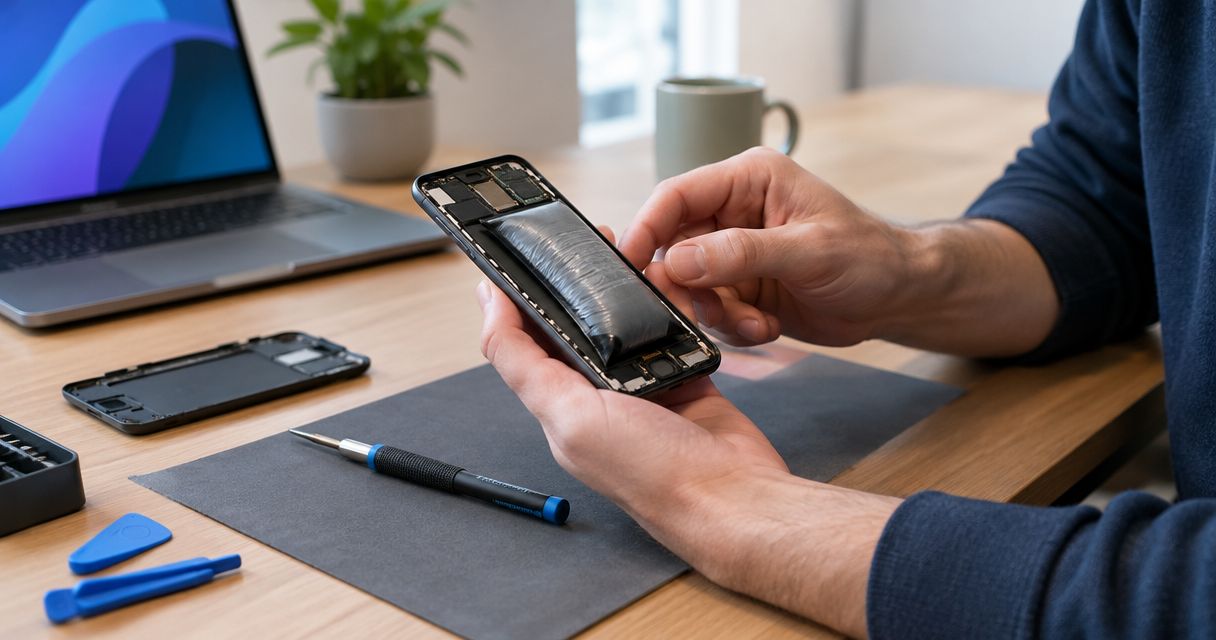
Stop before backing up if the battery is swollen, the screen is lifting, or the phone is unusually hot. Do not charge or keep using a damaged battery to finish this checklist. Contact the repair provider for safe handling instructions.
Choose the backup app that matches your computer
Use the app that already manages your iPhone. Do not move between apps simply to follow an older tutorial.
| Backup app | Best for | Advantage | Limitation |
|---|---|---|---|
| iTunes | Windows computers where iTunes manages the iPhone, or older compatible Macs | Supports encrypted local backups | Its instructions do not match every current computer |
| Finder | Macs running macOS Catalina or later | Handles iPhone backups within macOS | Requires a Mac and local storage |
| Apple Devices | Windows computers using Apple's dedicated device-management app | Provides iPhone backup and restore controls | Its navigation differs from iTunes |
All three routes require verification. The correct app is the one that recognizes your phone and shows a completed backup—not necessarily the app named in a search result.
Computer connection and backup settings
These iTunes steps apply when iTunes is the app managing your iPhone. Read the onscreen prompts carefully; cancel any unexpected erase or restore request.
- Connect your iPhone directly to the computer with a data-capable cable. Open iTunes and enter your iPhone passcode if requested.
- If the phone displays Trust This Computer?, tap Trust and follow the passcode prompt. Approve a corresponding computer prompt if one appears.
- Select the small device button near the top of the iTunes window, then select Summary.
- In Backups, select This computer. Selecting a backup destination is not the same as starting a backup.
- Select Encrypt local backup. If encryption is already enabled, leave it enabled and confirm that you know the existing password.
- When prompted to create a password, save it in a password manager or another secure place you can reach without the phone. Follow the confirmation prompt.
Expected result: iTunes recognizes the correct iPhone, the local-computer destination is selected, and backup encryption is enabled.
There are 2 separate passwords to distinguish: the iPhone passcode and the backup-encryption password. Neither should be confused with your Apple Account password. Do not put the only copy of the backup password in a note stored solely on the phone awaiting repair.
Backup creation and verification
A progress bar is not your final check. Wait for completion and inspect the backup record before disconnecting the phone.
- In iTunes, select Back Up Now if a backup has not already started after enabling encryption.
- Keep the cable connected and prevent the computer from sleeping while the backup runs. If an error appears, resolve it rather than treating a partial attempt as protection.
- When the activity finishes, check Latest Backup on the Summary page. Confirm that the computer backup shows the date and time of the backup you just made.
- On Windows, open Edit, then Preferences, then Devices. On an older Mac using iTunes, open iTunes, then Preferences, then Devices.
- Find the matching device backup. Check its timestamp and the lock icon that identifies an encrypted backup.
- Confirm that you can retrieve the saved encryption password from somewhere other than the iPhone.
Expected result: you have 1 completed backup with a matching timestamp and an encryption indicator, plus access to its password.
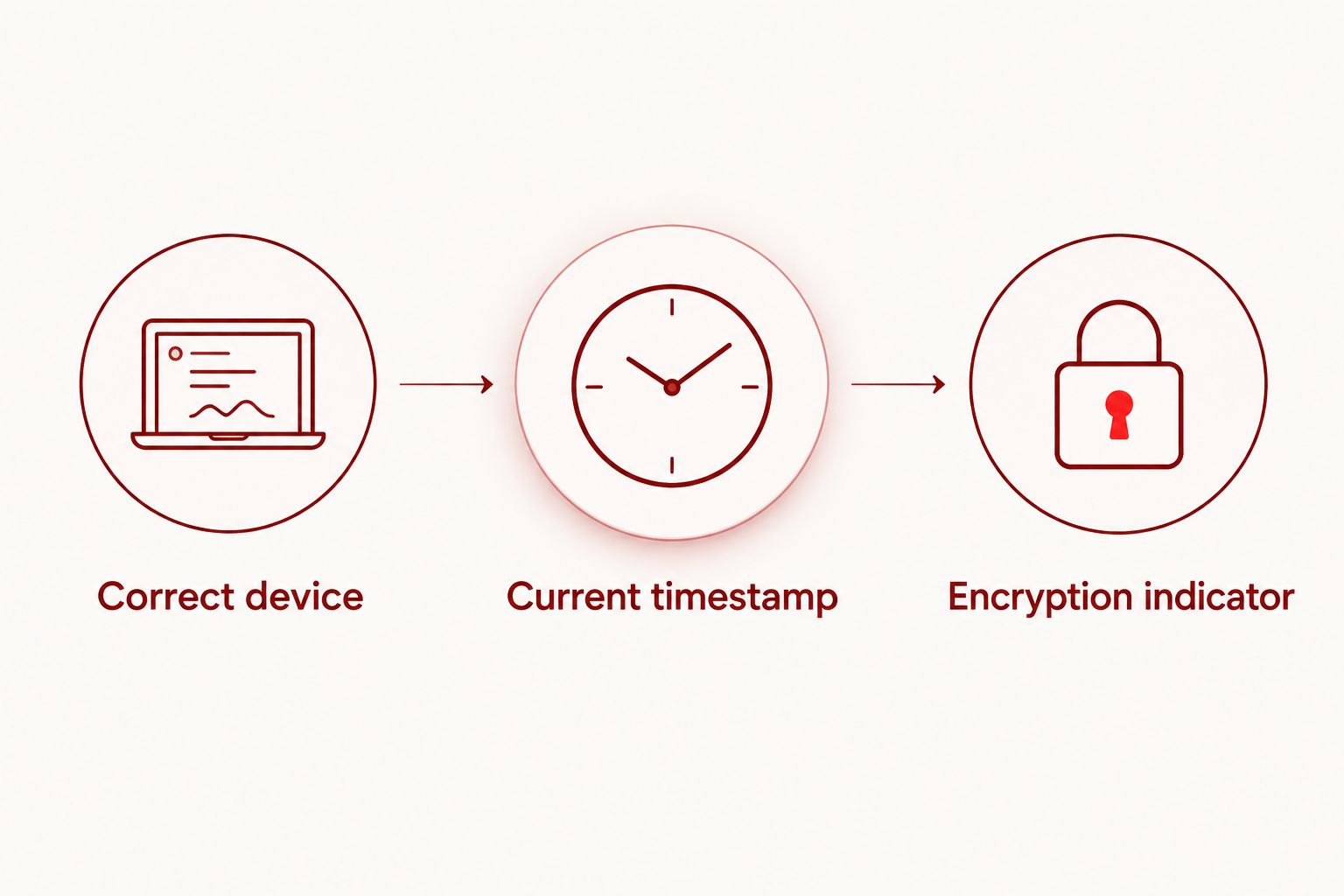
Use 3 verification checks before your appointment: correct device, current timestamp, and encryption indicator. These checks confirm the backup record; they do not prove that every account or app can be restored without additional sign-in steps.
Review anything stored outside the backup as well. Photos already syncing through iCloud, for example, are not duplicated inside a computer backup; confirm that the relevant sync has finished separately. App-specific recovery requirements also deserve a check before service.
Repair appointment and handoff
Once your backup is verified, move to repair planning. Aspect Phone Solutions smartphone repair is by appointment rather than walk-in, so use the booking page to arrange your visit.
- Describe the actual symptoms: unexpected shutdowns, rapid battery drain, charging trouble, or visible damage. Include whether the problem began after a drop or liquid exposure.
- Record your iPhone model and any battery-related message shown in Settings. For a 2026 appointment, give the current symptoms rather than relying on an old screenshot.
- Ask what preparation the repair requires, including any Find My instructions. Do not disable security features or erase your phone merely because an unrelated tutorial says to.
- Keep your Apple Account password and backup password private. Ask why any device access is needed and enter credentials yourself when appropriate.
- Confirm the proposed repair after inspection and before authorization. Aspect Phone Solutions confirms the repair price before authorization; this guide does not substitute for an inspection.
- Tell the repair provider that you have a verified encrypted backup. Also explain any remaining backup problem before work begins.
Expected result: you have an appointment, the repair provider knows the symptoms, and you understand what you are authorizing.
An appointment organizes the visit; it does not establish a completion time. Ask about the expected handoff and collection arrangements for your particular phone rather than planning around an assumed same-day result.
Post-repair checks and recovery
Do not restore a backup simply because the battery was replaced. If your iPhone starts normally and your data is present, check its operation first.
- Enter your passcode and open familiar apps. Check recent photos, contacts, messages, and calendar entries relevant to your daily use.
- Connect a suitable charger and confirm that the phone recognizes it. Test the touchscreen, cameras, speaker, microphone, and your usual network connections.
- Revisit the original symptom. Report continued shutdowns or charging failures rather than assuming that a completed battery replacement resolved every issue.
- If the phone was erased or replaced as part of an agreed repair process, follow the computer-backup restoration prompts. In iTunes, select the device, open Summary, and choose Restore Backup.
- Select the backup by device and timestamp, and enter its encryption password when asked. Do not confuse Restore Backup with Restore iPhone, which erases and reinstalls the device software.
Expected result: either your existing data remains accessible, or an intentional restoration is underway from the verified backup.
Keep the pre-repair backup until you have checked the recovered data and essential accounts. A successful startup is not enough to confirm access to work messages, authentication apps, or records you need later.
Refresh the backup when your appointment changes
If you continue using your iPhone between backup and repair, the saved copy does not automatically contain everything added afterward. A backup made earlier in 2026 is not current merely because its year matches the appointment.
Reconnect the phone, open the same backup app, and repeat Back Up Now. Verify the new timestamp and encryption indicator before disconnecting. Save important new files separately if their app uses its own export or sync process.
For an additional recovery route, consider iCloud Backup alongside the computer backup. Its advantage is a separate backup location; its limitation is dependence on account access, network access, and sufficient iCloud storage. Confirm completion rather than assuming that enabling it created a usable copy.
Best for changing schedules: refresh the encrypted computer backup shortly before handoff, provided the phone is safe to use. Keep the password accessible outside the phone throughout the repair.
Troubleshooting
iTunes does not recognize the iPhone
Enter the phone's passcode, reconnect it, and check for the trust prompt. Try another data-capable cable and a direct computer port rather than a hub. On Windows, check whether Apple Devices is now the app managing the phone.
The computer reports insufficient storage
Free space on the computer before retrying. Do not delete your only usable backup just to clear the error. If you use a different computer, verify its completed backup before removing an older copy elsewhere.
The encrypted backup asks for an unknown password
Check your password manager and records. Your Apple Account password does not automatically open an encrypted computer backup. Apple's reset procedure can allow a new backup password, but it does not decrypt old backups; review the procedure's settings changes before proceeding.
The backup fails or keeps disconnecting
Check the cable, direct connection, available storage, and any displayed error. Restart the computer and iPhone only if the phone is safe to operate. If shutdowns prevent completion, explain the problem before repair and discuss the data risk explicitly.
The phone will not start or shows swelling
A normal iTunes backup requires the computer to communicate with the phone. If it cannot start, an existing backup becomes especially important. For swelling, unusual heat, or a lifting screen, stop charging and using the device; prioritize safe handling over another backup attempt.
Customize your workflow
Prepare account access, not just files. Before your 2026 repair appointment, check how you will sign in to essential services if the iPhone is temporarily unavailable, especially services that send verification codes to it.
Keep recovery codes secure and accessible separately. For a work-managed phone, follow your employer's device policy before changing backup, security, or account settings. A personal backup does not replace your organization's requirements.
Aspect Phone Solutions is best for Edmond and OKC customers seeking appointment-based smartphone repair. The practical trade-off is scheduling ahead rather than arriving for walk-in service; confirm the visit before traveling.
FAQ
Do I need an iTunes backup before battery replacement?
Make a verified backup before battery replacement whenever the phone is safe to operate. The repair does not inherently require erasing the iPhone, but a backup gives you a recovery path if data becomes inaccessible.
Is an encrypted iTunes backup better than an unencrypted backup?
An encrypted iTunes backup includes additional categories such as saved passwords, Wi-Fi settings, and Health data. Its limitation is that you must retain the encryption password to restore it.
Can I use Finder or Apple Devices instead of iTunes?
Yes. In 2026, Finder manages iPhone backups on Macs running macOS Catalina or later, while Apple Devices manages them on Windows computers using that app. Follow the controls in the app that recognizes your phone.
How do I know my iTunes backup finished?
Check the latest computer-backup timestamp and the matching record in the Devices preferences. For an encrypted backup, also confirm the lock icon and access to the saved password.
Will replacing my iPhone battery delete my photos?
Battery replacement does not inherently erase photos, but you should verify a backup and any separate photo sync before service. Photos already syncing through iCloud are not duplicated in a computer backup.
Should I restore my backup immediately after battery replacement?
No. If your phone starts normally and your data remains present, check its operation without restoring. Restore only when recovery is necessary, and distinguish Restore Backup from the erase-and-reinstall Restore iPhone command.
Can I walk into Aspect Phone Solutions for battery repair?
Aspect Phone Solutions provides smartphone repair by appointment rather than walk-in. Arrange your visit and describe the battery symptoms before traveling from Edmond or elsewhere in the Oklahoma City area.
One last thing
Your backup password can become more important than the cable used to create the backup. Before leaving for repair, retrieve that password without touching your iPhone. If you cannot, fix that access problem while the phone is still available and safe to use.