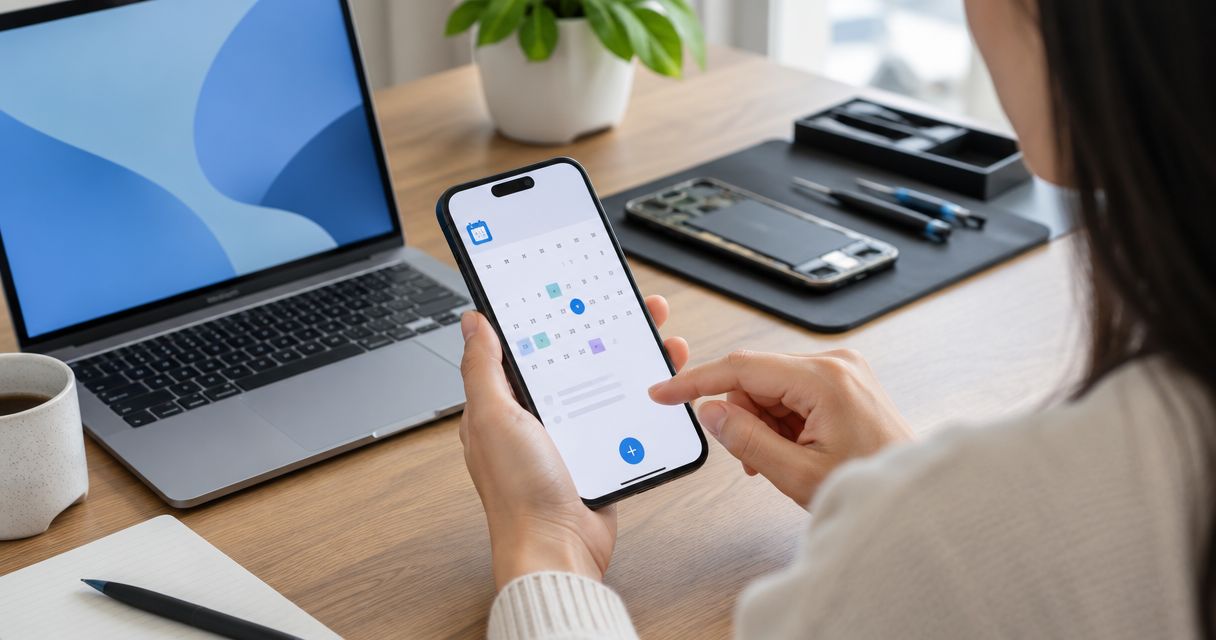
Instead of searching messages for your repair time, add your confirmed phone repair appointment to Google Calendar and set reminders for preparation and departure. Create an event with the confirmed date, time, and location; saving it in Calendar does not book the repair.
- Add phone repair appointment to Google Calendar after the repair provider confirms your booking.
- Aspect Phone Solutions provides appointment-based smartphone repair for Edmond and Oklahoma City customers.
- Use a manual calendar event unless you receive an actual calendar invitation.
- Set preparation and departure reminders, and update the event whenever your confirmed appointment changes.
Why this matters
Your calendar entry is a reminder, not a reservation. For an appointment with Aspect Phone Solutions, start with the booking page and obtain confirmation before treating a time as scheduled.
A calendar event keeps the practical details together: when to arrive, where to go, and what to prepare. It should not turn an arrival time into an assumed repair completion time.
Aspect Phone Solutions smartphone repair is best for Edmond and OKC customers who want an appointment-based service. The scheduling trade-off is straightforward: arrange the visit rather than relying on a walk-in.
This 2026 guide uses Google Calendar on a desktop browser for the main instructions. The mobile app also supports creating events, but its layout differs from the desktop editor.
Before you start
- Have your confirmed appointment details: the date, arrival time, location, and any preparation instructions. If you only submitted a request, wait for confirmation before marking the event as confirmed.
- Use the right Google account: choose an account you can access from another device if your damaged phone stops working. Check whether a work or family calendar exposes event details to other people.
- Check the non-obvious issue: reminder access. A reminder sent only to the phone being repaired is not a dependable preparation plan. Also, adding a repair shop as a guest sends an invitation; it does not create a booking.
Keep your booking confirmation open while you enter the event. Copy details from that confirmation rather than from an old appointment or a search result.
Choose your calendar method
There are two useful ways to record a confirmed repair appointment. Manual entry is best for a booking confirmed by an ordinary message; accepting an invitation is best when the provider actually sends a calendar invitation.
| Method | Best for | Advantage | Limitation |
|---|---|---|---|
| Manual event | A confirmed appointment without a calendar invitation | You control the title, notes, calendar, and reminders | You must enter details and make later changes yourself |
| Calendar invitation | A confirmed appointment accompanied by an actual invitation | You can respond to the organizer's event | You must check that the invitation matches the booking and review later updates |
Do not assume a confirmation email will automatically appear in Google Calendar. An ordinary message and a calendar invitation are different things. Manual entry avoids depending on automatic email recognition.
For a 2026 repair visit, either method works when the event matches the provider's latest confirmation. Avoid using both methods for the same appointment, which creates duplicate reminders.
Confirm details
- Read the latest appointment confirmation. Identify the arrival date, local time, and exact address supplied for your visit.
- Check what the appointment represents. A drop-off or inspection appointment does not establish a pickup time unless the provider explicitly confirms one.
- Resolve unclear details before adding them to Calendar. Ask about conflicting times, missing location information, or preparation instructions you do not understand.
- Identify how the provider will reach you while your phone is unavailable. Arrange an alternative contact method directly if you need one.
Expected result: You have a confirmed arrival time and location, without an invented completion deadline.
For Aspect Phone Solutions smartphone repair, keep inspection and repair authorization separate from calendar planning. The service approach calls for confirming the repair price before authorization; a calendar entry is not authorization to perform work.
Keep sensitive information out of your event notes. A symptom description is useful; your screen passcode, account password, or recovery codes are not.
Create event
- Open Google Calendar in a desktop browser and sign in to the Google account you intend to use.
- Select Create, then Event. Alternatively, select the confirmed date and time on the calendar to open an event editor.
- In Add title, enter a recognizable title such as Phone repair appointment. If you share the calendar, keep the title general enough for its audience.
- Enter the confirmed date and start time. For an appointment in 2026, check the year as well as the month and day. Keep All day unselected for a timed visit.
- Check the end time rather than accepting it as a repair estimate. If the provider has not confirmed a duration, use an end time only as your own planning placeholder and explain that in the description.
- Choose the intended calendar from the calendar selector. Use a personal calendar when you do not want repair details on a work or shared calendar.
- In Add location, enter the confirmed address. Check any suggested location before selecting it; a similar business name is not confirmation of the destination.
- In Add description, record the phone model, a short symptom description, and the provider's preparation instructions. Include a booking reference only if one was supplied.
Expected result: The draft event contains the confirmed arrival details and clearly separates your planning notes from the provider's commitments.
A useful description might read: Arrival appointment only. Phone has intermittent charging. Bring items requested in the confirmation. Pickup timing has not been confirmed. Adapt that wording to your actual situation rather than copying symptoms that do not apply.
Leave Add guests empty unless you intentionally want to invite someone. Adding a household member can help coordinate a ride, but adding the repair business is not a substitute for booking through its stated process.
Set reminders
- Open the full event editor if you are still using the compact event window. Select More options when that control appears.
- Find the notification section. Use Add notification to add another reminder if you need separate preparation and departure prompts.
- As a planning example, set a preparation reminder 1 day before the appointment. Use it to review instructions and check that your backup is complete.
- Set a second reminder around your own travel needs. 30 minutes before is an example, not a travel-time estimate for Edmond or Oklahoma City; allow for your actual route and arrival requirements.
- If you prefer a shorter final prompt, use 10 minutes before only when it still leaves enough time for the action you need to take.
- Select Save. If Calendar asks about sending invitations because you added guests, review the recipients before sending.
Expected result: Your saved event has reminders chosen for your preparation and travel, not a default schedule you have never checked.
Do not confuse an event's end time with a reminder time. Changing a reminder does not change when the appointment starts, and shortening the event does not shorten the repair.
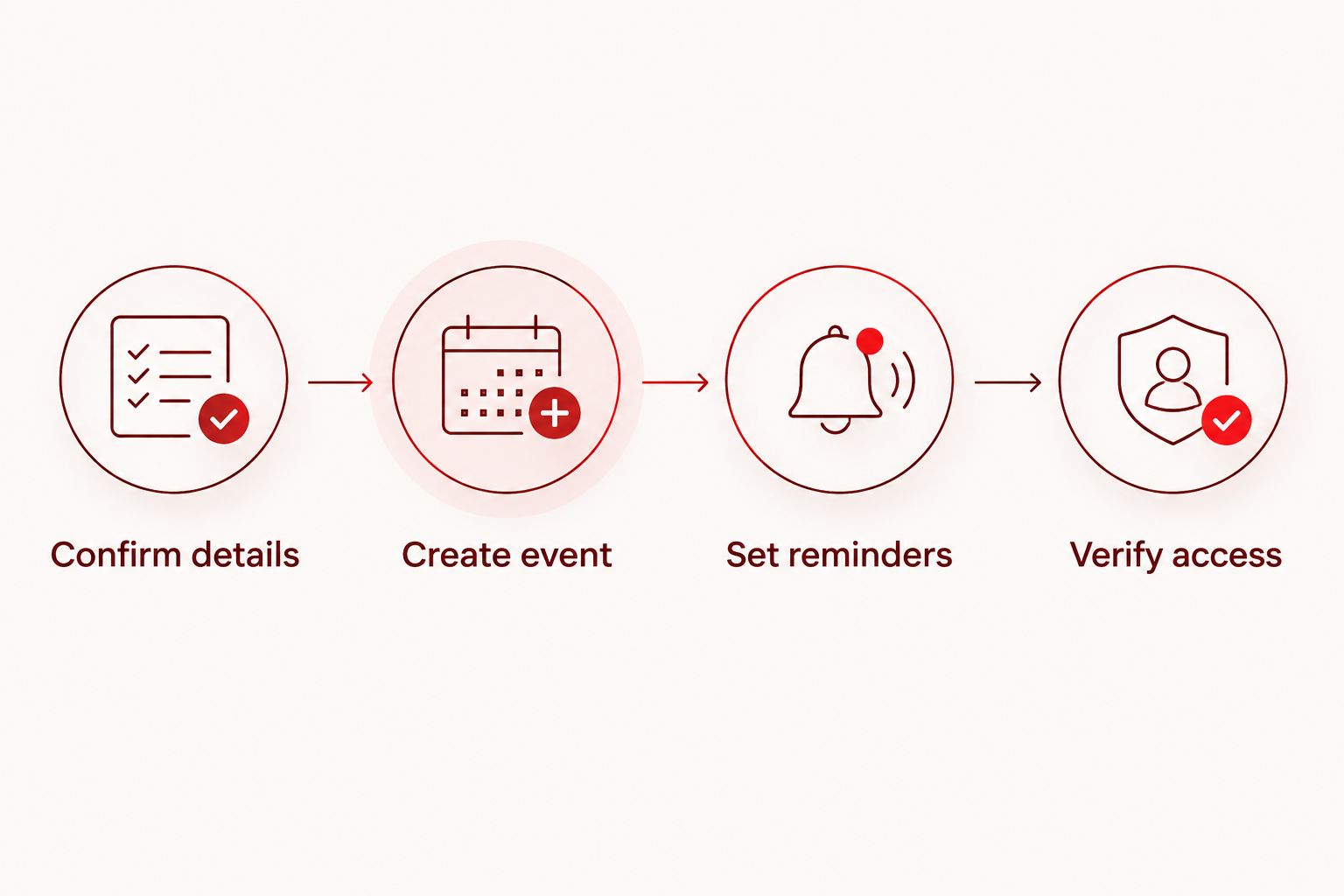
The full workflow is simple: confirm the booking, create the event, set reminders, then verify access. Complete that last check before relying on the calendar.
Verify access
- Find the saved appointment in Google Calendar and open it again. Compare the date, start time, and location with the booking confirmation.
- Check the event's notification settings. Confirm that the reminders you chose remain attached to this event.
- Open Calendar on another device you expect to use while your phone is unavailable. Sign in to the same account and confirm that the appointment is visible.
- If you need mobile alerts, check that the Calendar app has notification permission in the device's settings. Saving an event does not override blocked device notifications.
- Keep a separate copy of the address and appointment time if you will not have another working device. A paper note is sufficient for those details.
Expected result: You can retrieve the appointment without depending entirely on the phone going in for repair.
Before leaving for a 2026 appointment, check the latest provider message once more. Your calendar is only as accurate as the last confirmed details you entered.
Update the event when your appointment changes
Best for rescheduled visits: edit the existing event after the repair provider confirms the new time. Do not create another entry unless it represents a genuinely separate appointment.
- Arrange the change with the provider first. Moving a personal calendar event does not notify the business or change its booking.
- Open the existing event in Google Calendar and select Edit event, shown with a pencil icon.
- Replace the date and start time with the newly confirmed details. Update the location or description if those instructions changed too.
- Review each reminder against the new appointment time, then select Save.
- Check for an older duplicate entry and remove it if it no longer represents a real appointment.
If you received an actual calendar invitation, review the organizer's updated invitation instead of creating a competing manual version. Confirm that the new details match your conversation with the provider.
For a cancellation, confirm the cancellation with the business before removing your personal entry. Deleting an event you created yourself does not cancel the service appointment.
Troubleshooting
The appointment is missing on your other device
Check the Google account first, then check whether the calendar containing the appointment is visible. An event saved under a work account will not appear simply because you opened a different personal account.
Refresh Calendar after correcting the account or visibility setting. Do not immediately create another event; first check whether the original already exists.
The reminder never appeared
Open the event and check whether it has a notification attached. Then check device notification permissions or browser notification permissions, depending on where you expected the alert.
For a 2026 repair appointment, also check whether your reminder depends on the damaged phone. Use an accessible second device or a separate written departure plan instead.
The event shows the wrong hour
Compare the event's time zone with the confirmed local appointment time. Edmond and Oklahoma City use Central Time, and daylight saving changes affect the UTC offset during the year.
Select the appropriate named time zone rather than guessing a fixed offset. Recheck the displayed arrival time after saving.
You see two appointments for the same visit
Look for a manual event alongside an accepted invitation or an automatically added email event. Keep the entry that accurately represents the confirmed appointment and remove the redundant personal copy.
Check the organizer before deleting anything. Removing your own duplicate is different from declining an invitation someone else organized.
Your calendar time differs from the confirmation
Use the provider's latest confirmed appointment details to resolve the conflict. Contact the provider if two messages disagree; do not choose whichever time is more convenient.
Update your event after the discrepancy is resolved. A saved calendar entry does not prove the business reserved that time.
Customize your workflow
Use the event description as a preparation checklist, not a storage place for private credentials. Record whether you have reviewed the backup instructions, arranged transportation, and confirmed an alternative contact method.
A separate preparation event can help when those tasks need their own time block. Keep its title distinct from the actual repair appointment so you do not mistake preparation time for arrival time.
If someone is helping with transportation, share only the information they need. A pickup plan does not require sharing your phone symptoms or private booking notes.
For Aspect Phone Solutions, the useful next move is to confirm the appointment and follow the supplied preparation instructions. Keep pickup plans provisional until a completion or collection time is actually confirmed.
FAQ
How do I add a phone repair appointment to Google Calendar?
Create an event after the repair provider confirms your appointment. Enter the confirmed date, arrival time, and location, add preparation reminders, and save it to a calendar you can access while your phone is unavailable.
Does adding a calendar event book my phone repair?
No. A personal Google Calendar event records your plans but does not reserve a repair appointment. Book with the provider and obtain confirmation separately.
Will my repair confirmation automatically appear in Google Calendar?
Do not rely on an ordinary confirmation message becoming a calendar event. Accept an actual calendar invitation if one is supplied, or create the event manually and check its details.
What end time should I use if I do not know how long the repair takes?
Treat the end time as your own planning placeholder unless the provider confirms a duration. Note that distinction in the description and do not treat it as a promised pickup time.
How do I change a repair appointment already in Google Calendar?
Confirm the new appointment with the repair provider first, then edit your existing calendar event. Changing a personal event does not reschedule the business's booking.
Can I get reminders if my phone is being repaired?
Use another accessible device signed in to the same Google account and check its notification settings. Keep a separate copy of the appointment details if no working device will be available.
Should I put my phone passcode in the calendar description?
No. Keep passcodes, passwords, and recovery codes out of calendar notes. Use the description for non-sensitive preparation instructions and appointment details only.
One last thing
The reminder device matters as much as the reminder time. Before handing over your phone, open the appointment on another device or write down the confirmed details. A carefully configured alert cannot help if it exists only on the device you no longer have.