Instead of copying photos and contacts manually before drop-off, use Samsung Smart Switch before phone repair to back up your Galaxy phone to a computer, check the result, and prepare your appointment handoff. Make the backup while the phone still works; do not erase the phone just because a transfer finishes.
- Use Samsung Smart Switch before phone repair to create a computer backup, then check which categories actually copied.
- Aspect Phone Solutions provides appointment-based smartphone repair for Edmond and Oklahoma City customers.
- Smart Switch does not preserve every app login, banking session, or authentication method.
- Keep your original phone unchanged until you have verified the backup and discussed repair requirements.
Why this matters
A broken screen or unreliable charging connection can turn a routine backup into a difficult recovery job. Smart Switch copies supported content, but a completed backup does not prove that every important account is accessible elsewhere.
Aspect Phone Solutions is best for Edmond and Oklahoma City customers seeking appointment-based smartphone repair. Use the booking page to arrange service rather than planning a walk-in visit. Explain the fault and whether you have a usable backup.
This 2026 workflow separates three jobs: protecting your files, preserving account access, and preparing the repair handoff. Completing one does not automatically complete the others.
Before you start
- Prepare the equipment: Have your Galaxy phone, its screen-lock credential, a compatible Windows computer or Mac, Samsung Smart Switch for the computer, and a data-capable USB cable. Check Samsung's current compatibility requirements before installing.
- Prepare account access: Know your Samsung and Google account credentials, and check how you will receive verification codes while the phone is away. Keep recovery codes somewhere other than the phone being repaired.
- Expect a permission prompt: A computer cannot simply read a locked phone. You must be able to enter the screen-lock credential and approve connection requests; Smart Switch is not a workaround for a dead display or an inaccessible phone.
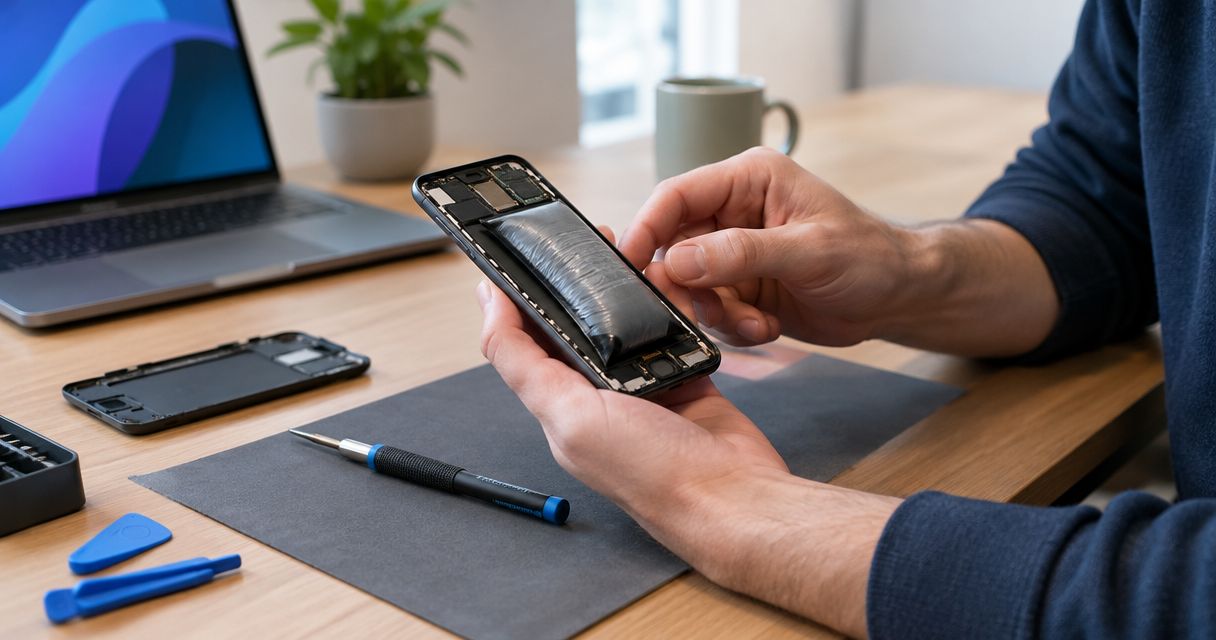
Stop the backup attempt if the battery is swollen, the phone becomes unusually hot, or the phone has recent liquid exposure. Do not connect a charger or computer to a wet phone. Arrange an assessment instead of keeping damaged hardware running to finish a copy.
Choose your 2026 backup route
For repair preparation, a computer backup and a transfer to another Galaxy serve different purposes. Choose based on whether you need a saved copy or a usable temporary phone.
| Route | Best for | Main advantage | Main limitation |
|---|---|---|---|
| Smart Switch computer backup | Keeping a local copy before repair | Saves supported content without requiring another phone | Requires a compatible computer, storage space, and a working connection |
| Smart Switch Galaxy-to-Galaxy transfer | Preparing a spare Galaxy for daily use | Puts supported content onto another usable device | Does not automatically move every login or activate cellular service |
Use the computer route when your main goal is protecting data before repair. Choose the spare-Galaxy route when you also need access to copied content during the appointment. Neither route replaces separate preparation for banking apps, work accounts, or authentication apps.
Computer backup setup
Treat the first backup as a task you supervise, not something you start and immediately leave. The phone can request permission after the cable is connected.
- Install Smart Switch. Get the computer version from Samsung's official support resources. Open the application after installation and follow any compatibility or update prompts.
- Connect the phone. Use a data-capable cable connected directly to the computer. Enter the phone's screen-lock credential and keep the display available for connection prompts.
- Approve access. Tap Allow if the phone asks permission for the connected computer to access data. Do not approve an unfamiliar computer.
- Start the copy. Select Backup in the computer application. Review the available content categories and select the supported information you need. Labels and selection screens differ between releases.
- Finish the process. Keep the connection stable until Smart Switch reports completion. Read the results, including skipped or failed categories, before disconnecting.
Expected result: Smart Switch shows a completed backup and a summary of what it copied. A progress bar reaching the end without reviewing that summary is not enough.
Do not promise yourself a fixed completion time. The amount of content, the computer, the connection, and the phone's condition all affect the process. Leave enough flexibility to resolve a connection problem before your appointment.
Backup verification
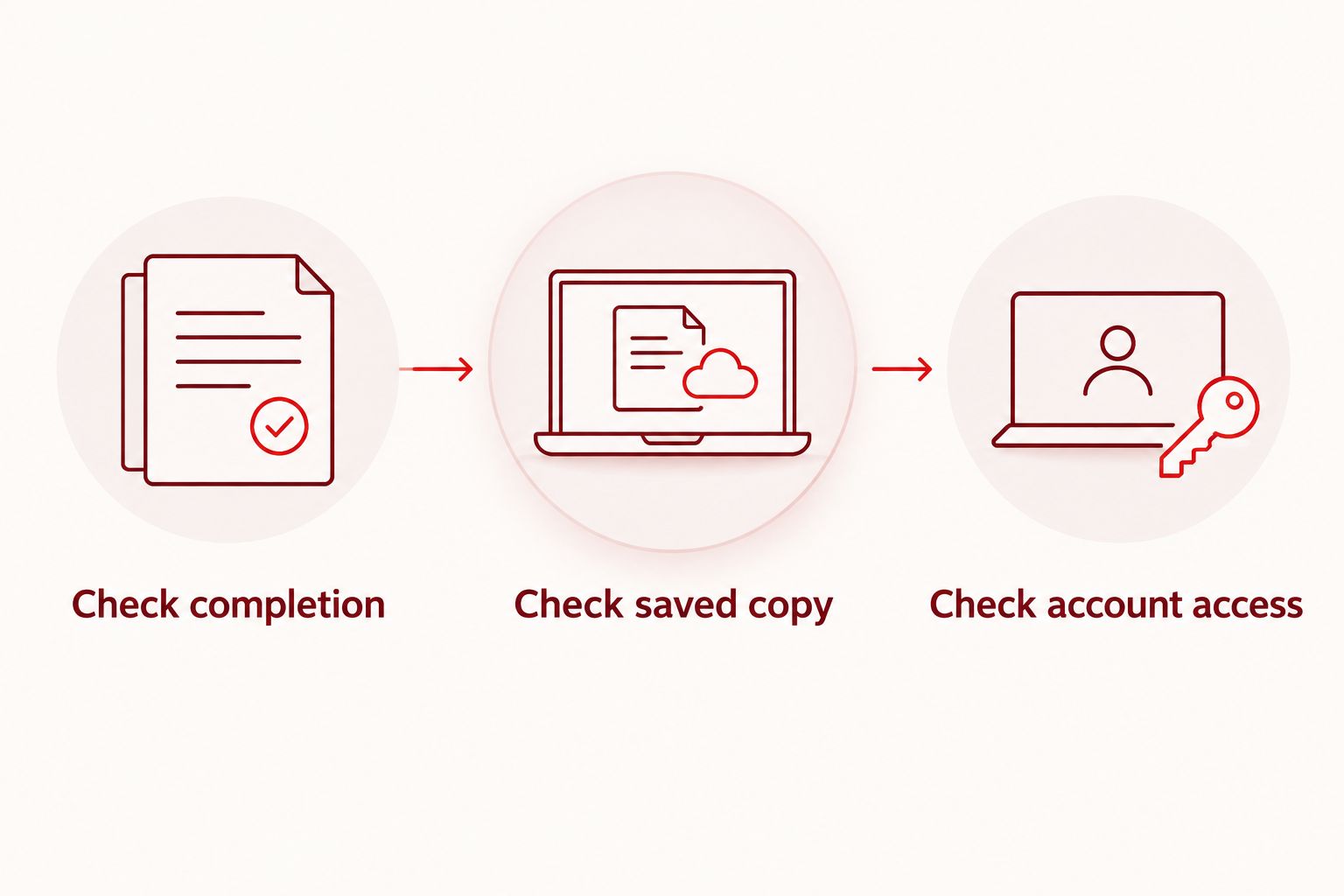
A backup summary is evidence of a copy, not a guarantee that every app will return exactly as you left it. Use these 3 checks before treating the phone as ready for repair.
- Check completion. Read the backup result and note any failed or excluded categories. If photos or messages matter most, confirm those categories were included rather than assuming the default selection covered them.
- Check the saved copy. In Smart Switch, open Restore and inspect the available backup information without starting a restore. Confirm that the intended phone and latest backup appear. Keep the backup on the computer until the repaired phone is working and your data is checked.
- Check account access. Use another trusted device to confirm access to essential email and account recovery methods. Follow each authentication app's own transfer or recovery instructions; installing the app again is not proof that its codes will return.
Expected result: You can identify the saved backup, explain any gaps, and access essential accounts without depending entirely on the repair phone.
Do not delete the original photos or messages to test whether the backup worked. Do not factory-reset the phone as a verification step. Those actions remove your fallback before the repair has even started.
Repair handoff preparation
Your 2026 repair handoff should explain the fault without exposing more personal information than necessary. Keep the appointment details and symptom notes somewhere you can reach without the damaged phone.
- Write the symptom history. Record what stopped working, whether the issue is constant, and whether a drop or liquid exposure preceded it. Distinguish observations from guesses: a loose-feeling cable connection is an observation; a failed charging port is a diagnosis.
- Confirm the appointment. Tell Aspect Phone Solutions which Galaxy model you have, what is wrong, and whether the phone powers on. Service is by appointment, and the repair quote is confirmed before you authorize work.
- Discuss testing access. Ask what access the repair requires. Do not send account passwords, banking credentials, or recovery codes with the phone.
- Consider Maintenance mode. On supported Galaxy phones, open Settings, then Device care, then Maintenance mode. Follow the on-screen instructions. Menu placement varies; use Settings search if needed, and discuss suitability for the planned repair first.
- Record the handoff condition. Note existing damage and any functions you could not test. Confirm which accessories, if any, need to accompany the phone.
Expected result: The appointment is arranged, the fault is clearly described, and you understand the testing and authorization requirements.
Maintenance mode limits access to personal information on supported devices. It is not a backup and does not make data loss impossible. If your Galaxy does not offer it, discuss privacy and testing requirements rather than changing unrelated security settings.
Arrange your repair appointment
Describe your Galaxy's fault and backup status before an appointment in Edmond or the OKC area.
Transfer to a spare Galaxy instead
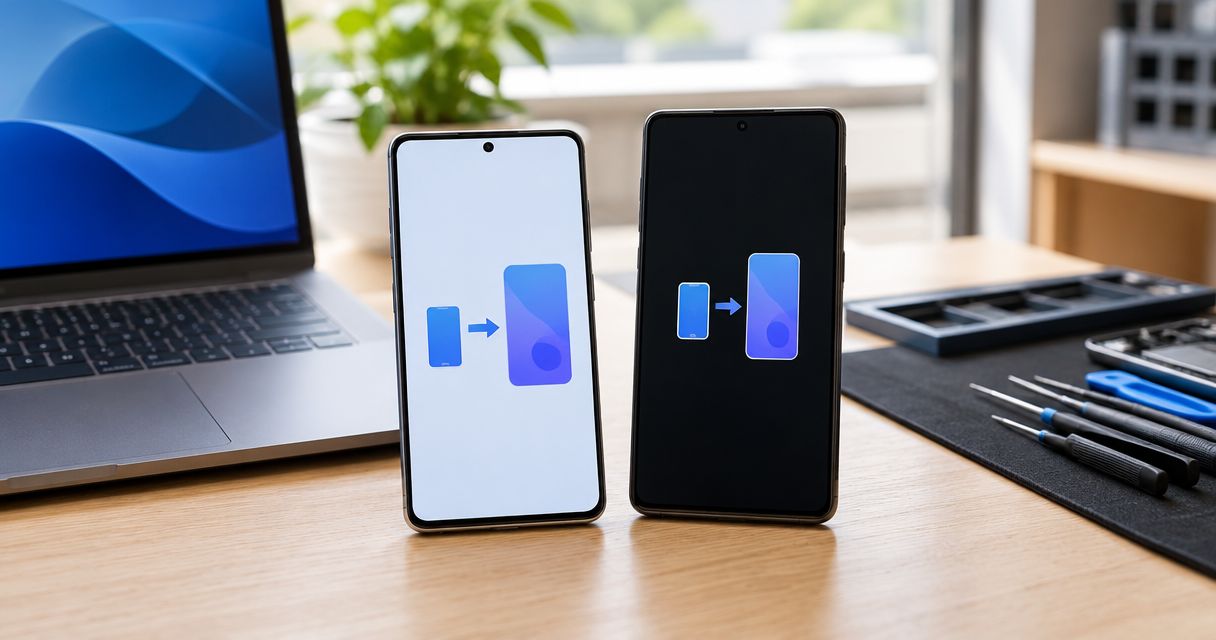
If you need a temporary phone in 2026, use Smart Switch to copy supported content to another compatible Galaxy. This creates a working destination for that content rather than just a backup stored on a computer.
- Open Smart Switch on both phones. On the original phone, select Send data; on the spare Galaxy, select Receive data.
- On the receiving phone, select Galaxy/Android when asked about the source. Choose Cable or Wireless as appropriate and follow the pairing instructions on both screens.
- Review the offered categories before starting the transfer. Keep both devices available until the transfer finishes and inspect any reported exclusions.
- Open important content on the spare phone. Check a recent photo, a contact you need, and the messages you expected to transfer.
- Handle mobile service separately. Follow your carrier's instructions for the SIM or eSIM, then make 1 test call before relying on the spare phone for calls.
Expected result: Supported content is present on the spare Galaxy, and you know which accounts or services still need attention.
A successful transfer does not establish that banking apps, employer-managed apps, or authentication tools are ready. Test those separately. Keep the original phone unchanged until you have checked the destination.
Refresh the copy after new activity
If you take more photos or receive important messages before drop-off, run another backup or transfer and review the result again. Do not assume the earlier copy updates itself whenever the phone changes.
The practical trigger is new information you cannot afford to lose. A backup made before that information existed cannot contain it.
Troubleshooting before drop-off
The computer does not detect the Galaxy
Check that the phone is on, accessible, and showing no unanswered permission prompt. Try a known data-capable cable and a direct computer USB connection rather than a hub. A cable that charges the phone does not necessarily support data transfer.
If the port is damaged or the connection repeatedly drops when the cable moves, stop forcing the connection. Describe that behavior when arranging the repair.
Smart Switch reports an incomplete backup
Read the failed categories and check the computer's available storage. Reconnect only if the phone is safe to use, then repeat the affected backup attempt. Keep the earlier copy until you have confirmed the newer result.
Do not interpret a partial copy as protection for everything on the phone. Write down what remains unprotected so the repair discussion reflects the actual risk.
The screen is black or touch no longer works
Smart Switch generally needs the phone to start and accept required access prompts. If you cannot enter the screen-lock credential or approve access, repeated cable changes will not solve that barrier.
Check existing backups from another trusted device. Tell the repair provider that preserving data is a priority before authorizing work, and explain that you could not create a fresh copy.
An app or verification code did not transfer
Use that app's own sign-in, export, or recovery process. Smart Switch support for a content category does not mean every app's protected information moves with it.
For a work-managed phone, ask your organization's administrator before changing account or security settings. Do not remove management controls to make a transfer proceed.
Customize your workflow
Add a separate check for the content you depend on most. If photos are your priority, the Google Photos backup-to-repair workflow covers an adjacent preparation task. Keep cloud access and the local Smart Switch backup separate in your checklist.
After repair, check the existing data before starting a restore. If everything remains intact, restoring merely because you have a backup adds an unnecessary step. If data is missing, review the available backup and restore choices carefully.
For your 2026 pickup check, confirm the repaired function and then check calls, charging, and essential account access as appropriate. Keep the backup until you have checked the phone in normal use.
FAQ
Should I use Samsung Smart Switch before phone repair?
Yes, use Samsung Smart Switch before phone repair if your Galaxy is safe to operate and can approve the required connection prompts. Check the backup summary and prepare account recovery separately.
Does Samsung Smart Switch back up everything on my phone?
No, Smart Switch does not preserve every app's protected data, login session, or authentication method. Review the supported categories and follow important apps' own recovery instructions.
Can I back up a Samsung phone with a broken screen?
A broken screen does not automatically prevent a backup, but you still need a way to enter the screen-lock credential and approve required prompts. If you cannot do that, check existing backups and discuss data preservation before repair.
Is Maintenance mode the same as a Smart Switch backup?
No, Maintenance mode limits access to personal information on supported Galaxy phones; Smart Switch copies supported content. Use a verified backup even when Maintenance mode is enabled.
Should I factory-reset my Galaxy before dropping it off?
Do not factory-reset your Galaxy solely because you are arranging a repair. Verify your backup and discuss whether the specific repair requires a reset before erasing anything.
Will Smart Switch activate my spare phone's mobile service?
No, copying content with Smart Switch does not replace your carrier's SIM or eSIM activation process. Follow the carrier's instructions and test calling before relying on the spare phone.
Can I walk into Aspect Phone Solutions after backing up?
Aspect Phone Solutions provides appointment-based smartphone repair for Edmond and the wider Oklahoma City area. Arrange the appointment and explain the phone's condition and backup status before bringing it in.
One last thing
A backup is only part of being ready for repair. The easily missed dependency is the verification code sent to the phone you are about to hand over. Before leaving home, confirm that you can access essential email and recovery methods without that device.